Showing posts with label digital tools. Show all posts

Digital Game Boards

 Digital Game Boards

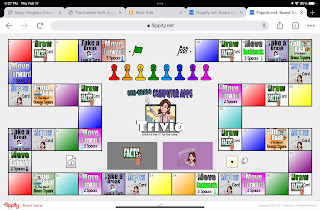
Who does not like to play a game, board game, card game, trivia, a puzzle, etc? We learn through play, it’s in our human nature. That is why we see play kitchen play sets, tool play sets, doctor play sets, veterinary play sets, etc. We learn best by playing, experimenting, and exploring. One of my personal and professional goals was to create a digital game board for my 8th-grade Computer Application classes to introduce Spreadsheets. In the past I have used Spreadsheet Battleship, Sudoku, and other interactive digital games. I do this one to capture the attention of my students, two change the perspective of how spreadsheets can be used, and three to inspire.

The digital tool that I used to construct my digital game board is Flippity. I love the tools Flippity has created that make learning fun and engaging. Flippity has created spreadsheet templates that are amazing. All you have to do is replace their content with yours. Once you have personalized the content the key to making it work is sharing the spreadsheet to the World Wide Web, a.k.a. the internet by publishing it to the web. Flippity offers step-by-step instructions, as well as frequently asked questions. All to aid in a positive experience in using their tools.  

Here is the game I created for my 8th-grade Computer Application classes. Feel free to personalize it to meet your needs. I did use my Bitmoji and Google Draw in creating some of my squares. The key in using that method in creating my squares is by publishing my Google Drawings to the web and using that url in the Flippity template.

8th-grade Computer Application Trivia - File

8th-grade Computer Applications Trivia - Game


Other Digital Games:


Surfing for Quality Digital Tools.....

Surfing for Quality Digital Tools...

The number one question I am asked is what tools do I use with students and how do I determine if the tool is the tool my students should use. I think of digital tools and resources like shoes and just like shoes, you will use the pair that works the best for the situation you are in. For example, you do not want to wear flip-flops when you are climbing or hiking you would use the proper footwear to get the job done. It is the same with digital tools, devices, and resources. Just like shoes digital tools, devices, and resources also depends on personal choice. The tools I use may not work or fit your needs so you need to use the tools you feel comfortable with.

The other side of the coin when using digital tools, devices, and resources you need to pick ones that take you and or your students beyond. For example, if you have an interactive whiteboard a.k.a. a SMART board and you never physically touch and interact with the board you basically just replaced your projector screen with a solid board version. To help you go to the next level in implementing technology into your curriculum I have designed an interactive rubric. This rubric is designed from research and is based on the SAMR framework. There are a few questions you will need to ask yourself about the tool, device, or resource you are wanting to use. Through the questioning, the rubric will guide you to if the tool you are wanting to use is going to move you more into transforming the learning or if you should think a little more about using the tool.

Just like any tool it really depends on how you plan to use it and not every tool works for everyone. Since I am a doctoral student and I am conducting research I am collecting the results of the rubric. You will be emailed a copy of your results when you hit the submit button. If you do not want me to collect your results I will have a second option that will allow you to make a copy of this rubric and use it. The copy will save to your Google Drive and you can use it from there.

Interactive Rubric Links:


Printing on Post-it Notes....

Printing on Post-it Notes.....

I had not realized that I had not shared how to print on Post-it Notes. Keep in mind the instructions will remain the same but Post-it Notes come in all sizes and styles. The file I am sharing with you is for the standard Stick-it Note. Feel free to change the document to fit your Post-it Note. The document I am sharing with you is a Google Draw file, so you will need to be logged into your Google Account to use this document.

I tell my students all the time there are many many ways to use technology to get to your desired end results. If the method I am sharing with you does not work for you to feel free to modify the steps and use a different tool. You are making a copy of the file I am sharing and it will auto save to your Google Drive.


Step 1:

  • Print out the template or Master "Print On Post-it" page. Click Here to get your copy. (This is a Google Drawing File. You must be logged into your Google Account to use.)
  • This page will allow you to align your text in order to print on the Post-it Notes.


Step 2:

  • Place Post-it Notes on the squares printing out on your page.
  • Make sure the sticky side is towards the Words “Top of Print”.
  • When the Stick-it Notes go through your printer you want the sticky sections to go first so the Stick-it Notes do not get jammed in the printer.


Step 3:

  • Place your page with the Stick-it Notes in the paper tray of your printer. 
  • Try face down with the words "Top of Print” at the top of the paper tray.


Step 4:

  • Type what you want to be printed on the Stick-it Notes in the squares of this document.
  • Print
  • Remove Stick-it Notes off of the printed page.

Step 5: 
  • Repeat steps 2-4 as many times as needed.


You only need to print out the blank template when you need a new or a cleaner one.


Click Here to Make a Copy of the Template.