New Technology Coming Soon .......

New Technology Coming Soon .....

I feel like a kid waiting for Christmas to arrive these past few weeks, and it is getting harder and harder to wait.  Thanks to some wonderful supporters Google Glass will be arriving very soon.  I can't wait to learn and share this out of this world technology with my students.  I think my students are more excited than I am that this wearable technology will be at their finger tips.  One of the projects I plan to do with this technology is to expand the use of Green-Screen effects on our Digital Stories.  I also plan inviting the pre-school classes over and have them tryout this technology along with some Augmented Reality apps.  I can't wait to capture their experience as their coloring page comes to life or a flashcard pops up a 3d image.  

Another project I would like to do is for my Global Project, I would like to create a walk around my school video using Glass.  I have it in my mind what I would like for it to look like, we will see if I can transfer it from my mind to real life.  I think it is important that those that have been sharing this Global Project with me can get a glimpse into our every day life at school, see what means to be an LMS Greenback.

If you would like to help to bring Google Glass to our school and make difference you can visit the campaign page "Bring Glass to Our School", there are only 6 days left to contribute to the campaign.

A BIG Thank you to all of those who contributed via the campaign and privately, you've made a Difference!


App / Tool of the Week .... Creating a Word Wall via Padlet

App / Tool of the Week .... Creating a Word Wall via Padlet 

Padlet is an online bulletin board so to speak.  I like to use Padlet to build an online word wall with my computer apps students.  Using this online tool has helped my students learn how to collaborate online.  Padlet is very easy to use and very easy to set up.


Setting Up a Padlet Wall:

  • Create an account / Login
  • Click "Build a Wall" or the + sign
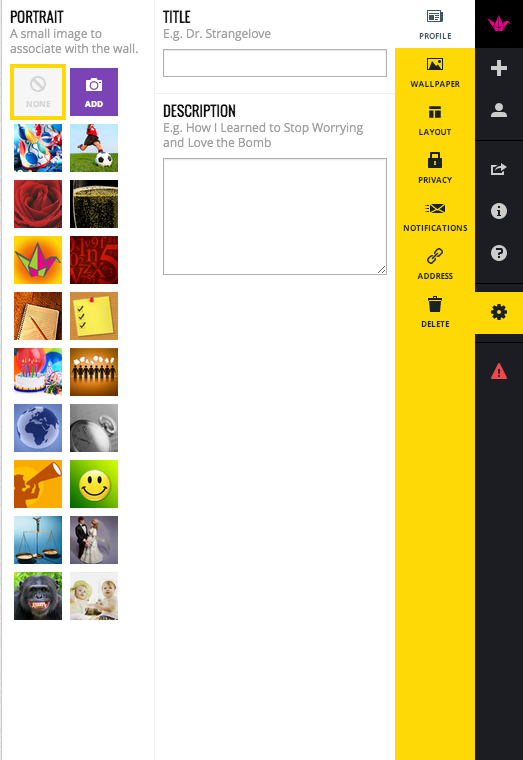
  • On the Right Hand Side are your options.  If you hover over them you will can see what they do.  For example Help, Create Wall, Modify this Wall, & etc....
  • Find Modify this Wall
  • Name your Wall
  • Give your Wall a Description or Instructions
  • Pick a Profile Picture or Upload one
  • Pick your Wallpaper or Upload one
  • Choose your Layout - Freeform can be posted anywhere on the wall.  - Stream posts are posted nice and neatly in a stream.
  • Choose your Privacy Level
  • Modify the URL (Web Address)
Once you are ready to have your students or teachers post to your wall share your URL (web address) of your wall.

Padlet Tips:

  • The Paper Crane will take you to the "Home" page of Padlet.
  • The 4 Squares will take you to all of your Padlet Walls.
  • The + Sign will create a New Wall.
  • The Box with the arrow coming out is to share.
  • To make a post click on the Pencil at the bottom left corner of the wall.

Examples of my Padlet Walls:

  • Word Walls
  • Exit Tickets (assessment)
  • Brainstorming
  • Collaboration
  • Sharing Resources
  • Many More....


App / Tool of the Week ... PlayART & Nomad Brush

App / Tool of the Week ... PlayART & Nomad Brush

When I was at the FETC conference I learned about the Nomad Brush.  This special brush interacts with your iPad like a paint brush.  I just had to try this out for myself.  I already had the app PlayART on my iPad so I thought these two tools would be a perfect pair.  The PlayART app lets you interact with elements from 8 artist such as Claude Monet, Vincent Van Gogh, and Gustav Klimt.

I purchased the smaller fatter brush since I have a kindergartener and thought she would love to use this tool.  After its arrival I decide that I need a classroom set of these paint brushes.  I am trying to teach my students to create original work instead of copying or stealing images from of the internet.  Having original artwork will make their projects more authentic and unique.  I normally teach my students how to draw using Google Draw since we are a Google Apps for Education school.  Since my 7th and 8th graders have their own iPads I have been looking more into how to get their creativity flowing and apps that they can create and then use their creations in writing projects.  


Now I am no artist by any means but I found using this brush and the PlayART app very user friendly.  I liked how my brush strokes showed up making for different effects.  I suggest trying the brush with a variety of apps that are focused in the draw or art areas.
My goal is to have my students create original work, write a children's or short story, and then tell their stories in front of a green-screen.  This would also be a great way to tell a poem, report, or even do a play.


Making Our Mark ....

Making Our Mark .... 

One of the tools I used to access students' knowledge for word processing skills is by having them do a simple write up on how they can make their mark on the world.  I ask them to show me what they know how to do, add pictures, change font, and etc... This year I added a twist to the assignment.  After they finished their write up and posted it in Edmodo for me to view they had to create a LOGO that went with how they plan to leave their mark.  This LOGO is no regular LOGO it has an Augmented Reality twist to it.  I used the colAR Dot Day coloring page and the colAR Mix app to bring their LOGOs to life.
My students really loved watching their LOGO spring to life when they where scanning it via their iPad.  I can see using the colAR coloring pages as a spring board for a creative writing projects. The staff at colAR are adding to their coloring pages some of the pages you do have to pay for and some are free.  I try to use the free ones with the kids.  Coloring is not just of elementary students especially if there is an Augmented Reality twist added.

Resources:


Making Our Mark by Slidely Slideshow