Showing posts with label website. Show all posts

Making Augmented Coloring Pages Meaningful ....

Making Augmented Coloring Pages Meaningful...

I get asked all the time how do you use Quiver's coloring pages in a meaningful way other than an
attention grabber?

I recently shared in the July Quiver EDU newsletter ways to use the Penguin and the Kea bird pages. (https://goo.gl/hwZaY6) 
To learn more ways to use Quiver's Augmented coloring pages in your classroom join the Quiver EDU Facebook group.  There you can get ideas, interact with the Quiver Ambassadors, and even share your ideas.  (https://goo.gl/ou5xCK)

Don't forget to sign up for the Quiver EDU newsletters. (https://goo.gl/gHxfYw)


WHY USE AR CHALLENGES .... THE SERIES .... PART 3

WHY USE AR CHALLENGES .... THE SERIES .... PART 3


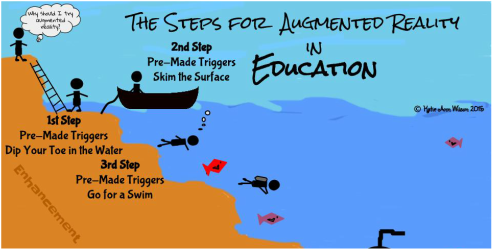
Pre-made augmented triggers can take learning deeper. We are going to go a little beyond skimming the surface with some already made augmented triggers. For step 3 of the series we will be looking into how pre-made triggers that are connected to an animated lesson, a 3D model, a video, or a 360° environment can take the learning experience to the next level.

Making an Interactive Notebook, Binder, or Journal:

I know several teachers that like for students to take notes, write in a journal, or keep a running binder of resources. Why not add an enhancement to the student's journal, notebook, or binder and reinforce a concept, topic, or enhance the learning with an augmented trigger. Someone else has already done the work of creating the augmented trigger all you have to do is match it the topic, concept, or lesson. That someone being the team of Aug That. They have tons of animated lessons from 1st grade through 8th grade on both English/Language Arts and Math, which by the way they have aligned to the common core standards. They also have massive library of 3 dimensional objects and 360° environments.

Studying space and different rockets why not put a augmented trigger of the rockets you are studying in your students' notebook. When they scan the trigger the 3 dimensional rocket pops out of their notebook where they can spin it around and zoom in on the rocket for a better look. You can't really get that experience just looking at a picture.

You have a few students having trouble with retailing a story. On their journal page adhere an augmented trigger that is tied an animated lesson that reinforces how to retail a story. A student needing a little help with developing a supporting topic, print out the already made augmented trigger and have the student attach it to his or her notes, journal, or added it to the resource binder. What if a student was gone and missed how you explained how to added and subtract decimals. Stick an augmented trigger on the assignment or, in the notebook, or send home a flashcard with the trigger on it.

Studying different historical sights such as the pyramids in Egypt. Why not have the students add an augmented trigger to their notes. When they scan it a 3D model of the pyramids pops out. Want to take them to see a volcano, summit for a mount range, or an ocean reef? Add an augmented 360° trigger to your students' writing, notes, or resources. When they scan the trigger it will transform your classroom into that environment.

Example of an Interactive Math Notebook:

I've been working on a 7th grade Interactive Math Notebook for a teacher friend. This notebook is basically a spiral notebook kids are writing notes, adding foldables, and other resources that pertain to 7th grade math. The teacher gave me the notes the kids are writing along with foldables she has created. My job was to go through Aug That's library and match up the math concept with the already created augmented triggers such as adding and subtracting decimals, fractions, and etc...

Once I found the augmented trigger that went with a certain math concept I copied and pasted the trigger image on to the foldable. If there was not a foldable just notes I then created a sheet full of that the trigger I wanted to use. The kids then cut and pasted the trigger next to their notes. Below is the link to one of the math foldables I added a pre-made augmented trigger to.

The Challenge:

You will have to contact Aug That's support team for this challenge. Ask them to show you an augmented animated lesson, 3D object and a 360° environment. Let them know what grade level and subjects you are working with. Don't forget to let them know I sent you.


Once you have tried all three different pre-made triggers I want to share your experience. You can choose how you want to share it. For example you could write a blog post, Tweet out your experience, share it with a friend, or even join my Augmented Reality for Education Group and let us know about your experience. Remember when sharing via social media use the hashtag #TechieEdu.


Resources:


The Sweet Sixteen to the Final Four .... Augmented Basketball

The Sweet Sixteen to the Final Four .... Augmented Basketball

During March Madness the 7th grade students were learning about ratios and percentages.  Their math teacher Miss Leiker thought it would be fun to put an engaging spin on her lesson and create an augmented basketball tournament. With a little help from me, the AR Basketball trigger, and Daqri 4D studio we developed an augmented basketball tournament.

The goal of the tournament was to apply what they had learned about ratios and percentages.  To collect their data students entered how many shots they made out of 25 onto a Google Form.  To access the Google Form students had to scan the augmented trigger for their class class and select Hoop it Up.  To view the class's tournament bracket students scanned the same augmented trigger and selected the basketballs.  Below is one of the augmented triggers. There was a augmented trigger for each class.


After students collected the data for their tournament they had to apply what they learned about ratios and percentages.  For example the percentage of shots made per person and overall, and the ratio of shots made versus shots missed.  

Example Math Problems: 

  • Write a part to part ratio based on your shooting results. Explain the meaning of your ratio.
  • Write a part to whole ratio based on your shooting results. Explain the meaning of your ratio.
  • Write three equivalent ratios based on your part to part ratio.
  • Write three equivalent ratios based on your part to whole ratio. 
  • Based on your results for make and misses, complete the table below to see how many baskets you SHOULD make or miss if you earned a 2nd round of shooting. What about a 3rd round? 4th and so on... 
  • A college basketball player last season shot 32/56 at the free throw line during the NCAA Tournament. Based on your shooting results, do you have a better shooting percentage than this player? Explain or show your work. 
  • If you were to shoot 72 baskets, based on your ratio, how many would you expect to make? Explain or show your work. 
  • How many would you expect to miss? Explain or show your work. 
  • Write a part to part ratio based on your amount made and missed for 72 shots. 
  • Is the part to part ratio from question C an equivalent ratio to your actual shooting results? Explain. 

The Tools Used:


Kid's On Strike - Augmented Jigsaw Puzzle

Kid's On Strike - Augmented Jigsaw Puzzle

A 6th grade Language Arts teacher friend of mine is teaching a literacy unit on the book "Kids' On Strike", by Susan Campbell Bartoletti. She is using the lesson plan from Building America and asked me if there was any way I could incorporate augmented reality (a.k.a. AR) into the lesson.  My answer was of course I can do that. I studied the lesson plan, read the book, and then dove right into how could I incorporate augmented reality into this topic.

Knowing my teacher friend was wanting to do a Jigsaw approach to this unit I decided that was the approach I needed to use to incorporate AR into the unit.  The book has 8 chapters that talk about the different types of strikes that had happened in the late 1800's and early 1900's. I found an image to represent each chapter.  Each image was then divided into 4th's.  The idea is for each member of the small group that is learning about a certain chapter would get a piece of the image.  When each piece is scanned an augmented element would appear.  When all the pieces are put together a 5th augmented element would appear.  Giving the experience a jigsaw feel.

The goal of the project is for each small group to be responsible for learning the content of the chapter assigned to them and to share what they have learned with their base group, learning the pieces to make the whole approach.  Within the small group each person is responsible to become the expert of the content that is embedded in their piece of their photo.  Above is one of the images that was used for this project.  If you print and cut the image into 4th's you will experience the augmented elements I have embedded into the image, or you just scan parts of the image.  One of the augmented elements is to take you to a Padlet board I created for this project.  Each image has it's own Padlet board.  This board will be where the students hold their discussions and to share what they have learned about that certain chapter.  

The App you will need to use for this project is Aug That's "Supreme Tutoring Augmented Reality” (STAR).  The app is available in both the Apple App store and the Google Play store.  Aug That is developing a teacher community called Teach Connect where teachers can share their augmented lessons they have created in a safe secure environment. There is no channel to follow, no password to enter, and no other content will appear on your augmented triggers when using their platform.  What teachers like about this community other than we can share content and it is safe, is they don't have to build it.  All they have to do is send the trigger image they want to use along with the AR element and the team at Aug That will put it together for you.  The team does approve all trigger images and content, so that you know that everything in the community is safe for kids and is educational.  This does take some time for the team to go through all the requests, so give them a day or two.

How to Bring the Above Image Alive:


  • Download the Supreme Tutoring Augmented Reality. Pick the app store you need.
  • Launch the app.  Click "Start Lesson"
  • Click "Teach Connect"
  • Scan part of the image. (The corner area.)
  • Scan another part of the image. (repeat)
  • Scan the entire image.

Resources:


Why Use AR....the Challenges

Why Use AR....the Challenges

Teaching others how to incorporate augmented reality into education is a passion of mine.  I love how diverse augmented reality can be.  I have also seen how engaging and powerful it can be when used as a learning tool.  I don't want to just learn about the solar system, I want to hold it in my hands! I want to dig deep into it and find out how it ticks. I want to explore every corner, turn it inside out, and flip it around. Augmented reality gives me the tools to do just that.
I don't want to just read about something, I want to learn about it.   
I've been asked to help others in dipping their toes so to speak into the water and start exploring the possibilities of augmented reality in education.  To help build the support line in learning how to incorporate augmented reality in education I am developing a series of challenges. My goal is to launch each new challenge via my podcast as well as develop an ebook to support the learning process.  As each challenge is completed the participants will also be able to earn a badge.

You will be able to follow the challenges via: 


Are you ready to take the challenge?

Building Bridges with Minecraft......

Building Bridges with Minecraft......

My oldest son wants to have a career in computer programming.  Him and a small group of his classmates needed some real world experience building a local area network or LAN.  He also needed some experience building a server that a group of computers can connect and communicate with.  I just happened to have access to a computer lab a.k.a. my classroom and with permission he was able to build a server to host a Minecraft world and network my classroom computers to it.  Over the winter break he tested out his server and tested the network he had created, and it worked.  Now all he needed was subjects using his network.

My middle school students love Minecraft and loved the idea of having a Minecraft party.  With permission we turned James's project into a fundraiser for the computer lab.  My students paid an entry fee to play 4 hours of Minecraft. They were able to play together all on the same world.  On the day of the Minecraft party James and his crew ran into tech issues, my classroom computers were giving them errors. From a teacher point a view it was great watching them troubleshoot the issues and come up with a solution.  Lucky for them I had assess to some laptops which seemed to work better on the network they created.  My desktop computers were having issues with an out dated graphics card.  Which I can see since they are at least 6 years old.

I enjoyed hearing the sounds of chatter coming from my classroom. I do believe my students loved being able to play with each other on the same Minecraft world.  I had 19 middle school students that attended the Minecraft party and 4 high school students that ran the the Minecraft world.  If one of my students had an issue with their computer or game I just loved telling them to see the big boys.  Seeing the bonds that were being created on a Saturday between middle school students and high school students was priceless.

App / Tool of the Week .... Actively Learn

App / Tool of the Week .... Actively Learn 

I get the privilege of teaching 6th grade Social Studies which focuses on the Ancient Civilizations when I am not teaching technology skills to middle school students.  With common core it is my job to teach my students how to pull information out of primary and secondary sources.  I find it difficult to assess my student's comprehension as we go through the various civilizations.  I am constantly asking myself: Do they really understand the Caste System?, Do they realize what they are reading happened thousands of years ago? and etc....

I recently had a chance to test drive Actively Learn. Actively Learn is an online platform that allows the teacher to pull in reading materials either from Actively Learn's catalog, the teacher's Google Drive, online source, or even a PDF.  The teacher then can add notes, video clips, and even questions.  I found the ability to add files from my Google Drive a huge plus since most of my resources are saved to my Google Drive.  Another big plus for me was that I could connect the common core standard with the questions I am asking.  I like that I can ask question while they are reading.  This breaks up the reading and assess my students' understanding.  While they are reading about King Tut I can include a video clip about his tomb and ask questions to assess their understanding.  This type of assessment gives me a better understanding if my students are really getting and understanding what they are reading.


Since some of my content has to do with diagrams and maps I love that I could add an image/media and ask questions about that image/media.  A lot of online quizzes will not support that feature.  I really liked that I can assign proficient levels to the short answers questions.  Assessing students' knowledge is more than just a letter grade.  To have the ability to show proficiency to parents is the key.  

Another great tool Actively Learn has built-in is the dictionary.  This tool is great for my students as we wade through the various ancient civilizations.  I like it because all of my students are reading the same definition not one from Webster Online another one from Dictionary.com and etc.... Students even have the ability to take notes and highlight text.

Even though I teach Social Studies I can see all of these tools very useful for other subject areas.  Actively Learn is free and students only need one account.  Students just need the code to a join class and can belong to as many classes as needed. When students are finished with the classes they can withdraw.

The biggest perk for me since I am a heavy Edmodo user is the ability to connect Edmodo to Actively Learn.  Having the ability to use Edmodo and Google Drive with Actively Learn for me is a win.


Click HERE for more information about Actively Learn or to sign up and give it a test drive. 


Making My Mark ..........

Making My Mark .....

My goal is to bring learning to life, and I love to augmented reality to do this.  This year for Dot Day I had my students write about how they could make their mark on the world.  When they finished with their writing assignment they were instructed to use the Dot Day color sheet by colAR Mix to design a LOGO to go with their assignment.

The second part of the assignment was for my students to create a blog.  I want them to own this blog, make it theirs, and post to as often as they would like.  Their 1st post was their Make My Mark assignment.  They also had to include an picture or a collage of pictures of them and their LOGO.


What my students may not have caught was I was making my own mark in their lives.  I love planting seeds and watching what grows. Encouraging them to write and own their own blog my just unleash the next best seller novel writer, the next high paying blogger, or even the next famous photographer.  I can't wait to see were my students' blogs will go.  What I do know is that writing for an audience is more meaningful then just writing for the teacher.


I have created a Symbaloo board to house their Make My Mark posts.  I plan on added to it as more posts are submitted.


How do you plan on Making Your Mark on the world?


Bringing Learning to Life....

Bringing Learning to Life....

I am proud to announce the launch of the 2nd Global Digital Scrapbook project. This Global Digital Scrapbook will showcase how augmented reality is being used in the classrooms around the world.


Project Goals:
Teachers and students will engage in discussions with others during the project about they are using augmented reality in their classroom. They will share how they are using pre-made triggers and or if they are creating their own augmented reality triggers.


Duration: 2014-2015 School year:
  • You can participate in the 1st semester session.
  • You can participate in the 2nd semester session.
  • You can participate in both sessions.

Targeted Grade Levels/Age Groups: All ages.

How This Project Works:
Teachers will communicate via the Augmented Reality Google+ Community.
Teachers will submit content to be added to the Digital Scrapbook.


Guidelines:

Teachers will need to submit a photo that will represent their school or classroom. This photo will be used as a maker for the interactive map as well as the header for their page.

Throughout the project teachers/classes will submit images, videos, write ups, and etc... that will be added to the various pages for the Global Digital Scrapbook.

How to submit your content will be posted after the project has started.


For further information
DM @katieann_76


The Project:

Exploring Coding.....

Exploring Coding.....

When you mention the words coding and programming most people stand back and say that is too hard or I just don't understand it.  When I mentioned to my students that we are going to work on some problem solving skills and I want to see who can finish all of the maze levels they jump on board. After a day or two of working on the many different levels of the maze I inform my students that they have been coding.  We talk about the if then statements, why they used repeat, and etc...  I then show them where they can see their line of code they have written.  I use the Maze 1 from The Hour of Code with my students.  I also provide them other resources where they can continue learning about coding.

My plan for next year is to go beyond just introducing my students to coding and programming and letting them explore.  I wrote a little grant and have received two items to add to my class which will help me teach kids to code and program.  The Hummingbird Kit with the help of Scratch will turn a inanimate object into a animated object.  The item I will be using with my students is the Finch.  It is a small programmable robot.

Resources:


 Coding Apps:

Reflection of MACE '14 ....

Reflection of MACE '14 ....

MACE or the Mid-America Association for Computers in Education is always the little shot of inspiration I need this time of year.  Even though a lot of the topics are things I already do and teach others about. I love to listen and learn how others use the tools as well or just get their perspective on the tool or topic.  This year was even more inspiring for me as I presented How to Create a Global Project.  If you would like the resources I shared during my session you will need to 1st create a Edmodo account if you do not already have one.  Then you will need to join my MACE - Global Project group, I will have to approve your request.  In side the group you will have access to all the resources I shared plus you will be able to connect and post questions within the group.

Click Here to join the MACE 2014 - Global Project Group.


One of the session I went to really inspired me to help my students learn to code, create, problem solve, & experiment.  I couldn't get these words out of my head after attending this session Computational Thinking & 21st Century Skills with Scratch, SNAP & Finch Robots.   Listed below are the resources shared from that session.
Computational Thinking is Problem Solving 

Tools:

  • Let’s Teach Kids to Code - TED Talk - http://www.ted.com/talks/mitch_resnick_let_s_teach_kids_to_code
  • Scratch - Web Based - http://scratch.mit.edu
  • Scratch - Download - http://scratch.mit.edu/scratch_1.4
  • Can now use a camera to make an interactive game such like Kinect 
  • Code.org
  • Hour of Code
  • MIT App Inventor- http://appinventor.mit.edu
  • SNAP - http://snap.berkeley.edu - Will run on iPads
  • Scriptastic - http://scriptastic.greenbush.us
  • KinderCoder - http://blog.greenbushlabs.com/?p=1638
  • The Finch - http://www.finchrobot.com
  • Hummingbird Robotics - http://www.hummingbirdkit.com
  • Khan Academy Computer Programing - https://www.khanacademy.org/cs
  • Code Academy - http://www.codecademy.com


https://docs.google.com/presentation/d/1r6nFkfR63v71-jIrySjIx5MYDedurrnPmDY2U5afx80/edit#slide=id.p

Below is my take away from the session on 21st Century Learning Environment Connecting School, Home and Community Through Educational Integration and Tools of Engagement.
  • Every time you are using your IWB - Record IT
  • Record the Lesson you are doing.  Make it available.
  • Share you resources
  • Use Meta Tags for Standards
  • Manage Your Digital Rights
  • Same Access at HOME and School
  • Manage Bandwidth
  • Look for Timestamps
  • Make your resources available to parents
  • Best File converter for video - YouTube
  • Use Free Educational Resources & Digital

IMS Global Learning Consortium - http://www.imsglobal.org

Tools of Engagement:

  • Wolframalpha - https://www.wolframalpha.com
  • November Learning - http://novemberlearning.com
  • Diigo for Education - https://www.diigo.com/education
  • Advance Search for Google
  • Google Maps

What also inspired me was Open Source Badges.  I use badges in Edmodo for my students and I am collecting badges for myself on a professional level.  What gets me is why didn't I think of using Open Source Badges with my students, so that they could post them in a digital portfolio.

Resources for Open Badges:

  • Mozilla Open Badges - http://openbadges.org
  • Credly - https://credly.com
    • BadgeOS - To creat badges
    • Open Badge Designer to Create Graphics
    • Credly Login for Wordpress - allows users to login with Credly account
    • BadgesOS Badge Stack Add on
  • Achievement
    • Tie back to CCSS - 21st Century Skills
    • Set up tasks


Presentations Beyond PPT

  • Google Drive & Google Apps
  • Biteslide - http://www.biteslide.com
  • Google Presentation - https://drive.google.com/templates?type=presentations#
  • SlideGo - http://www.slidego.com
  • Draw.io - https://www.draw.io
  • Mural.ly - https://mural.ly
  • Thinglink - https://www.thinglink.com
  • Glogster Edu - http://edu.glogster.com
  • Wondersay - http://www.wondersay.com
  • WorditOut - http://worditout.com
  • PicLits - http://www.piclits.com/compose_dragdrop.asp
  • Smore - https://www.smore.com
  • GoAnimate - http://goanimate.com
  • Animoto - http://animoto.com
  • Prezi - http://prezi.com
  • Haiku Deck - http://www.haikudeck.com
  • Popplet - http://popplet.com
  • Poetics App - https://itunes.apple.com/us/app/poetics/id543995959?mt=8


Apps that Bring Learning to Life

  • ColAR - http://colarapp.com
  • AR Flashcards - http://arflashcards.com
  • AR Flashcards - Space - http://arflashcards.com/ar-flashcards-space
  • Aurasma - http://www.aurasma.com
  • https://itunes.apple.com/us/app/aurasma/id432526396?mt=8
  • https://play.google.com/store/apps/details?id=com.aurasma.aurasma
  • Studio Aruasma - https://studio.aurasma.com
  • Layar - https://www.layar.com
  • https://itunes.apple.com/us/app/layar-augmented-reality/id334404207?mt=8
  • https://play.google.com/store/apps/details?id=com.layar
  • FaketicketGenerator - http://www.faketicketgenerator.com
  • Polleverywhere - http://www.polleverywhere.com
  • Google Translate- http://translate.google.com
  • 4D Elements - https://itunes.apple.com/us/app/elements-4d-by-daqri/id782713582?mt=8
  • HumanAnatomy 

App / Tool of the Week .... Creating a Word Wall via Padlet

App / Tool of the Week .... Creating a Word Wall via Padlet 

Padlet is an online bulletin board so to speak.  I like to use Padlet to build an online word wall with my computer apps students.  Using this online tool has helped my students learn how to collaborate online.  Padlet is very easy to use and very easy to set up.


Setting Up a Padlet Wall:

  • Create an account / Login
  • Click "Build a Wall" or the + sign
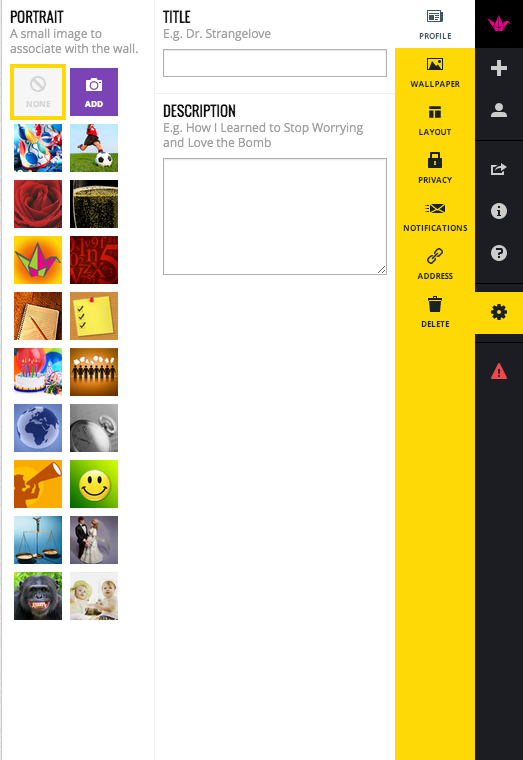
  • On the Right Hand Side are your options.  If you hover over them you will can see what they do.  For example Help, Create Wall, Modify this Wall, & etc....
  • Find Modify this Wall
  • Name your Wall
  • Give your Wall a Description or Instructions
  • Pick a Profile Picture or Upload one
  • Pick your Wallpaper or Upload one
  • Choose your Layout - Freeform can be posted anywhere on the wall.  - Stream posts are posted nice and neatly in a stream.
  • Choose your Privacy Level
  • Modify the URL (Web Address)
Once you are ready to have your students or teachers post to your wall share your URL (web address) of your wall.

Padlet Tips:

  • The Paper Crane will take you to the "Home" page of Padlet.
  • The 4 Squares will take you to all of your Padlet Walls.
  • The + Sign will create a New Wall.
  • The Box with the arrow coming out is to share.
  • To make a post click on the Pencil at the bottom left corner of the wall.

Examples of my Padlet Walls:

  • Word Walls
  • Exit Tickets (assessment)
  • Brainstorming
  • Collaboration
  • Sharing Resources
  • Many More....


App / Tool of the Week - VoiceThread ....

App / Tool of the Week - VoiceThread ....

VoiceThread is a great presentation tool.  You can use it in many ways.  I choose to use VoiceThread for my 6th grade students and reporting on Ancient China.  I had my students compose their reports on a Google Doc and cite their resources before I gave them an iPad to record their reports.  You do not need an iPad to create a VoiceThread it can be done via their website.  After I had given them feedback and approved their report then they were given an iPad to record their report, they also had to find 3 images that represented their report.  I did have them make their recording all in one setting.  We found it hard to edit VoiceThreads via the app.

Below is an example of one of the Ancient China Reports.


Ideas for VoiceThread:

  • Create a Book Report
  • Create a History Report
  • Create a Presentation
  • Report on a Science Project
  • Collaboration Project

Tips:

  • Free accounts are limited, you can only create so many VoiceThreads and you can't delete them.
  • If recording with the app, do all of your recording at once.  We found it hard to edit VoiceThreads via the app.
  • You have to confirm your email so I created Fake/Disposable Emails for this.

Student Examples:

Resources:

The Power of One ....

The Power of One ....

Say something you saw sparked an interest with you and you wanted to know more about it.  You look for people that may know more about the thing that inspired you. You join Twitter, look for a Facebook Page, attend a conference, and etc...   Find what works for you and use it.  After you find what works, build your own Personal Learning Environment.  

Once you learn more about what inspired you don't be afraid to go forward and try something new. Don't be afraid to create, explore, and really discover.  If you get stuck reach out and ask your PLE for help or ask Google, Bing, or YouTube.  Don't settle, find out more, explore, play in the sandbox, see what you can do with what inspired you.

Now share what you have learned.  

  • Show Someone
  • Demonstrate
  • Explain
  • Inspire Someone
Then reflect on what you have learned, who you have shared with, and who they have shared with. That one thing you wanted to learn more about has now became the inspiration for others.  You became the Power of One just because you shared.


That one thing that I wanted to learn more about was Augmented Reality and how to create a Green-Screen Effect.

Inspiration is everywhere don't be afraid to explore and then share.


App / Tool of the Week ... Edmodo

App / Tool of the Week ... Edmodo

I bet you are wondering what is Edmodo and why should I use it. Edmodo is a secure platform that brings your classroom into the 21st century. It allows your classroom and resources to be accessible to students 24 hours a day and 7 days a week.  Edmodo is designed to get students excited about learning and mirrors a social network.  It also makes it easy for teachers to create a blended learning experience while teaching 21 century skills.  Edmodo offers engaging, easy-to-use apps that integrate seamlessly and personalize learning for every student.

Edmodo is all about connections.  It allows teachers to build a powerful network that connects them to students, parents, administrators and publishers.  It makes assessing students knowledge simple to track with student progress. Teachers can get the pulse of the class through polls, quizzes, discussion, and more.  Edmodo can be accessed through your computer's browser or the app for a mobile device.  There are over 23,000,000 user from around the world using Edmodo. 


Useful Slideshow on how to use Edmodo

Getting Started:

  • Create your account
  • Complete your profile
  • Create a group
  • Invite students and peers
    • Share resources, lead collaborative discussions, give assignments, quizzes, polls and more
  • Install Apps
    • Engage students, inspire creativity, assess learning
  • Follow and participate in communities

Best Practices for Social Learning:

  • Do not post group codes publicly 
  • Lock group codes after all members have joined 
  • Monitor posts 
    • Set up notifications 
  • Use read-only status when useful 
  • Encourage students to select unique passwords 
  • Set expectations

Now to answer the question "Why should I use it?"  My answer is WHY NOT!

App / Tool of the Week - Evernote

App / Tool of the Week - Evernote ....


The tool other than the Google Apps I use the most is Evernote.  Evernote is a tool that is web based and can be accessed with a computer, tablet, or smartphone.  The reason I love using this tool is I can access my stuff on any device.

I love that I can have Notebooks.  I think of the Notebooks like a filing cabinet drawer.  I can break down a notebook even more by adding more notebooks to the 1st one.  For example I have a notebook labeled Summer PD.  In that notebook I have created a notebook for each conference I have attended.  Within each conference notebook I have a note for each session, I have also tagged each session.  Say I attended a session on creating student blogs one of the tags I would assign it is blog.  This way I can do a search for blogs and everything I have tagged blog will show up in the search not matter what notebook I have assigned it to.


Evernote also has a Web Clipper.  You can capture parts of a website and import them onto a note within Evernote.  You can also add audio, images, websites, and other resources to your notes.

Here are some ideas you can use Evernote for:

  • Note taking
  • Recipes
  • Collaboration Tool
  • Saving Websites
  • Sharing Resources
  • Trip Planning
  • Shopping Lists
  • Reminders a.k.a Sticky Notes
  • Store Documents
  • Record Audio
  • Capture and share images
  • Manage a Paperless office or classroom
  • Projects

Evernote has some really good video clips in YouTube.  They also have some other great tools that work with Evernote that I am still learning about.

The Global Digital Scrapbook ...

The Global Digital Scrapbook ...

The launch of The Global Digital Scrapbook has been a success.  I bet you are wondering how I can even say this project is already successful when the school year hasn't even started for me.  My goal for this project was to connect my 6th grade students with other students so that they can learn how to build positive connections.  I wasn't sure how it would all work out, but I had to try.  I spent several days brainstorming how to organize and run such a project.  I tried to think up every question that might be asked of me and find a solution.  I created the group in Edmodo and tried to organize the folders within the group.  I wanted to be able to provide as much information and resources to teachers and students who decided to participate in this global project.

My new goal for this project is now to connect teachers and students from around the world and help them share their stories, cultures, and traditions.  You can help by sharing this project and encouraging others to participate.  You to can also join in and participate with this global project.  We currently have 18 schools and over 800 students involved in this project.  I am excited to connect and collaborate with teachers and students from all over.  I can't wait to watch the scrapbook pages start to take shape.

For more information about the project or to watch it grow please visit:


Change in URL ....

Change in URL ....

It was requested that we shortened the URL and with some global collaboration the new URL for our Global Digital Scrapbook Project for 2013-14 is now http://gdsp2013.weebly.com.

Please pass on the word about the new URL.


To Get Started:

  • Tell people about this project! Share & Share Often!
  • If you do not have an Edmodo Account please sign up for one.
  • Fill out the Sign Up Form.
  • Once you have signed up you will receive an email with our Edmodo group URL. 
  • Log into Edmodo and check out our group.

My Recap of Edmodocon 2013.....

My Recap of Edmodocon 2013.....


I bet you are asking yourself what is Edmodocon.  EdmodoCon is an entire day of short professional development sessions on a variety of topics on using technology in the classroom and is sponsored by Edmodo broadcasted in a webcast.  I was just one of the 25,000 educators from 170 countries enrolled for this one of a kind conference.  There were several viewing parties, where educators got together and participated virtually as group during the conference.  I myself was a party of one.

During the conference I learned a lot about Edmodo itself.  In the past I used Edmodo here and there with a small group of students.  Listening to how others have used this powerful online tool inspired me to totally embrace all of what Edmodo can do.  I didn't realize how powerful the groups can be within Edmodo.  During the conference I kept hearing how kids love to earn badges.  During one of the breaks I created Ancient Egypt, Ancient Rome, and keyboarding badges.  I plan on creating more and defining how to earn them later this week.

In the past I knew about the folders but I wasn't very organize when I uploaded my stuff to the library.  During another little break I was able to organize the items I already had thanks to a teacher I was in a chat with and started adding new items that were shared in the community.  I didn't have to upload items if someone else already shared it what a concept.

I am wanting to do Flipped Instruction with my students so the Edmodo platform just became the right choice for me.  I love the idea that I can connect with classrooms from around the world.  Having everything in one place, assignments, quizzes, videos, and etc... will just make my life a whole lot easier.

I am also taking "The Challenge" to apply at least one thing I have learned from Edmodocon.  I looked at the list of all that have signed up for "The Challenge" and I was 23rd on the list.  For the first 500 people who participate in the whole process by completing "Th Challenge" form and completing the form they will share October 1st, will win $100 in promotional Edmodo Store Credit to install and integrate apps in your groups.  I am kind of motivated and would love to have the GoAnimate app for all of my students.

I use Google Docs in my classroom I had no idea that I could incorporate my already created Google Forms/Docs/Spreadsheets and etc... within Edmodo.  This discover with the help of yet another teacher I was chatting with during the conference made my heart sing.  You can also embed items.  So if you have embed codes they should work wonderful within Edmodo.  There was so much information shared I have picked a handful of my favorites to share with you.

My Global Project thanks to Edmodocon 

Resources:

Tips:

  • Make folders in your "Library".  Keep organized!
  • Join groups/communities that fit your needs.
  • Lock down your groups.
  • Use the widget to help turn items on and off with in your groups.
  • Use the Filter to help filter posts.
  • Modify your notifications to fit your needs.
  • Make connections within Edmodo.

App / Tool of the Week - Weebly.....

App / Tool of the Week - Weebly.....

Weebly is a web-hosting service that features a drag-and-drop website builder.  I use Weebly to build my classroom website.

Getting Started:

  • Go to Weebly.com and sign up.
  • Log into your account.
  • Start by "Adding a Site"
  • Name your Site.
  • Pick your Domain Name.
  • Pick a Theme.
  • Start modifying your website by adding "Elements".
  • Add pictures.
  • Add content.
  • Add pages - Classroom Rules, Assignments, and etc...
  • When you are ready "Publish your Website".

Tips:

  • Keep your content up to date.  Don't make it and then forget about it.
  • Share your website with your students, parents, and colleagues.
  • Add content about yourself.  Let kids and parents get to know you.

My Website: