Showing posts with label interactive. Show all posts

Bringing Books to Life with Augmented Reality....

Bringing Books to Life with Augmented Reality....

Reading a good book opens the door to children's imagination.  Adding educational augmented content to a book unlocks endless possibilities for learning and understanding.  I was thrilled when Twyla shared her dream of adding augmented content to books to bring learning to life.  Using the AugThat platform together we brought the book "The Napping House" by Audrey Wood and  Don Wood to life.

Some of the lessons for "The Napping House" is geared to the hearing impaired students while others can be enjoyed for all students of all ages.  Our goal was to provide triggers for the book for students to scan and then follow along while reading the book via sign language.  We also wanted to reinforce keywords from the book for students to learn to sign.

To really bring the book to life we included activities that brought the world to kids.  We've included 360º  augmented triggers and augmented 3D objects.  We've included math and science activities that are based from the theme of the book.  My favorite activity for this book just happens to be the augmented 360º of the rainbow.  Some kids may have never seen a rainbow other than a picture. How cool is it that we can transform our classrooms and bring in a rainbow.

Resources:

Making Compound Words Augmented Game - Set 2

Making Compound Words Augmented Game - Set 2


By request I've added Making Compound Words Augmented Game - Set 2 to my list of augmented tools you can download and use in a center setting.  I am still thinking over adding audio to the "Making Compound Words Augmented Game - Set 1 & 2".  If I do add that component it will auto update for you. When students put the game pieces on the board and scan them an image of the board with the correct answer should appear. Since now I have the compound words pancake and cupcake students I hope will match the correct cake, so now not only is this game creating compound words but as well as developing matching skills.  Students will need to match the correct background of the cakes to their matching compound word partner.  If your students do not have matching skills you may want to keep the two sets separate until they have practiced putting the compound words together.

When using this board and its cards remember to go to the app's settings and enter the code "17472" before you scan, this is very important to make the game work. Just a tip scan the whole board, making sure the entire board appears on your device. You will want to click on the X at the top of your device's screen in between scans. You may even want to shrink the app or even close it between scans. This will help clear out the previous scan, and keep the app from being confused.

When you use educational augmented content with your students please fill out this form. I would like to track how many kids are being reached with educational augmented content.

Lesson plans with Common Core Standards are coming soon...

Let's Make 10 with Augmented Reality ....

Let's Make 10 with Augmented Reality ....


I was inspired by Keven to create a Let's Make 10 augmented interactive board.  He was trying to use Aurasma and was having some issues.  So I thought I might give it a shot and see if I can get it to work. I really loved the idea of an interactive Let's Make 10 board using augmented reality.  When it comes to creating augmented triggers your triggers have to be very unique.  Color really doesn't have an effect on the how unique the trigger is.  It is more the contrast between the lines and shapes within the trigger.

So what I did was make each number as unique as I could with different lines, shapes and contrast between them.  I placed the combination of numbers that created 10 together on the board and took a close up picture of the 2 numbers together on the board.  I uploaded the combination for 10 into the Blippar's Blipbuilder and created a Blip within my Math folder.  I tied an image that says Correct to the Blip.  So when those combinations of those numbers are scanned the image "Correct" will pop out on the iPad.  I wanted to do a set of combinations that are not correct and tie a "Sorry Try Again" image but the app was getting confused.

Keep in mind this is not perfect.  When you are scanning to see if you make 10 scan the whole board. Make sure the board fills the whole screen of your device.  After each scan click on the X at the top right side of your screen to clear the scan.  You may even need to shrink or close the app between scans.  This will help clear the Blippar app and not confuse it.  Before you start scanning make sure you have gone to the settings within the Blippar app and enter the code "18296".  If you don't make 10 you should see an image from Blippar asking you if you need help scanning, just click NO and try a new number combination.

This interactive augmented board will only work with the Let's Make 10 numbers.  You can print these numbers in Black and White or Color.  You can also print the board and numbers on colored paper.  I suggest if you are wanting to use this game with multiple kids print the board and numbers in sets with different colored paper or colored card stock.  You can even laminate the board and numbers.

Thanks Kevin for the idea!

Let's Make 10 Augmented Game:


When you use educational augmented content with your students please fill out this form. I would like to track how many kids are being reached with educational augmented content.

WHY USE AR CHALLENGES .... THE SERIES .... PART 3

WHY USE AR CHALLENGES .... THE SERIES .... PART 3


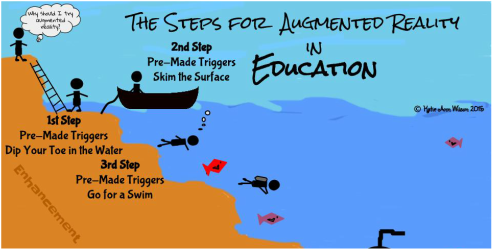
Pre-made augmented triggers can take learning deeper. We are going to go a little beyond skimming the surface with some already made augmented triggers. For step 3 of the series we will be looking into how pre-made triggers that are connected to an animated lesson, a 3D model, a video, or a 360° environment can take the learning experience to the next level.

Making an Interactive Notebook, Binder, or Journal:

I know several teachers that like for students to take notes, write in a journal, or keep a running binder of resources. Why not add an enhancement to the student's journal, notebook, or binder and reinforce a concept, topic, or enhance the learning with an augmented trigger. Someone else has already done the work of creating the augmented trigger all you have to do is match it the topic, concept, or lesson. That someone being the team of Aug That. They have tons of animated lessons from 1st grade through 8th grade on both English/Language Arts and Math, which by the way they have aligned to the common core standards. They also have massive library of 3 dimensional objects and 360° environments.

Studying space and different rockets why not put a augmented trigger of the rockets you are studying in your students' notebook. When they scan the trigger the 3 dimensional rocket pops out of their notebook where they can spin it around and zoom in on the rocket for a better look. You can't really get that experience just looking at a picture.

You have a few students having trouble with retailing a story. On their journal page adhere an augmented trigger that is tied an animated lesson that reinforces how to retail a story. A student needing a little help with developing a supporting topic, print out the already made augmented trigger and have the student attach it to his or her notes, journal, or added it to the resource binder. What if a student was gone and missed how you explained how to added and subtract decimals. Stick an augmented trigger on the assignment or, in the notebook, or send home a flashcard with the trigger on it.

Studying different historical sights such as the pyramids in Egypt. Why not have the students add an augmented trigger to their notes. When they scan it a 3D model of the pyramids pops out. Want to take them to see a volcano, summit for a mount range, or an ocean reef? Add an augmented 360° trigger to your students' writing, notes, or resources. When they scan the trigger it will transform your classroom into that environment.

Example of an Interactive Math Notebook:

I've been working on a 7th grade Interactive Math Notebook for a teacher friend. This notebook is basically a spiral notebook kids are writing notes, adding foldables, and other resources that pertain to 7th grade math. The teacher gave me the notes the kids are writing along with foldables she has created. My job was to go through Aug That's library and match up the math concept with the already created augmented triggers such as adding and subtracting decimals, fractions, and etc...

Once I found the augmented trigger that went with a certain math concept I copied and pasted the trigger image on to the foldable. If there was not a foldable just notes I then created a sheet full of that the trigger I wanted to use. The kids then cut and pasted the trigger next to their notes. Below is the link to one of the math foldables I added a pre-made augmented trigger to.

The Challenge:

You will have to contact Aug That's support team for this challenge. Ask them to show you an augmented animated lesson, 3D object and a 360° environment. Let them know what grade level and subjects you are working with. Don't forget to let them know I sent you.


Once you have tried all three different pre-made triggers I want to share your experience. You can choose how you want to share it. For example you could write a blog post, Tweet out your experience, share it with a friend, or even join my Augmented Reality for Education Group and let us know about your experience. Remember when sharing via social media use the hashtag #TechieEdu.


Resources:


Why Use Augmented Reality in the Classroom

Why Use Augmented Reality in the Classroom


I get asked a lot why should teachers use augmented reality in their classroom.  Augmented reality is not a new concept, in fact it has been in use in a wide range of industries for over 10 years. It took a dreamer who developed interactive coloring sheets and flashcards that popped out 3 dimensional objects geared towards kids before teachers even thought this tool was even useful.  Some professionals still even think it is just a toy. Crayons, Legos, Tinker Toys, Candyland, and dice are all toys and you can find them in most elementary classrooms. Kids learn best when they play, it is a proven fact.  Which is why teachers and parents turn toys into engaging tools.  When you are actively engaged you are learning.

Using augmented items in the classroom engages students beyond a worksheet, textbook, or even a video, and opens the door to endless possibilities.  Boeing even announced during the AWE 2015 conference that augmented reality improved training for its employees.  The employees did the task 30% faster with a 90% accuracy over the employees that only were allowed to read a PDF.  Augmented reality is even being used in operating rooms to monitor patients. Workers on oil rigs even use augmented reality to help service the rigs.  The military uses augmented goggles to receive important information in the field.

So when I am asked why should augmented reality be used in classrooms the answer is clear.  The use of augmented reality in classrooms prepares our children for their future today.

There are many companies that have seen the impact augmented reality has and are developing their own tool to stake claim in the land of AR so to speak.  Everyone has different needs so the tool or tools you decide to equip yourself with will depend on your needs.  Quiver, Color Alive, and Chromville have some pretty cool interactive augmented coloring. I use the pages as writing prompts with my students. I also use these pages to help teach students how to revise their writing.  If you are new to using augmented contented the coloring pages would be the avenue I would take to get started. There is also the tortoise and hare coloring pages from Arloon.

Daqri has also developed a few augmented tools such as their 4D Elements blocks and their 4D anatomy both are great if that is the content you teach.  Kids love holding the gold block and watching compounds come together.  I even used the 4D anatomy to show how a heart valve works.

For me it is about creating my own augmented content. There are a few companies that allow you to create such as Layar, Blippar, Daqri, Aurasuma, and Aug That. Each ones has their own platform and what they specialize in. When you are picking out a pair of shoes, you are going to with a pair you feel comfortable with. Same idea when picking out a company you want to use to create augmented content.  I suggest you try them all out and get a feel for them.  Then use the company that best fits your needs. Each one of use has different needs and different comfort levels. 

Daqri's platform as well as Layar and Blipper will allow you to copy, paste, and insert digital content.  Unless you blog or share your creation in some way no one is going to know what you have created.  For me I love to share and create content for others. I find it a challenge and a reward at the same time, so I needed a platform that would allow me to do just that.

Adam Newman the Founder of Aug That also had the same idea. Teachers make the most amazing and engaging activities and they need a place to share with one another, so he developed the Teach Connect. Teachers can send the trigger image to Aug That along with the augmented elements and his staff will do their magic and create the augmented experience.  The reason for his staff creating the augmented experiences is one to make sure the content is safe for kids. The other reason is to make sure each and every time your trigger gets scanned your intended content is what is received.  They also want to make sure your trigger is a scannable trigger. Nothing is more frustrating than putting all your time into something and it doesn't work.

What I love best about Teach Connect is the sharing.  It is a community built for teachers and soon there will also be one for students. If you are needing an engaging activity on DNA to either enhance a lesson or as a introduction you can go to the Teach Connect and download it.  It is already for you and your students to use.  The community is constantly growing so I am sure there is an augmented lesson or activity just waiting for you.

Aug That not only has the Teach Connect they also have tons of augmented animated lessons already made along with tons of 360 degree environments and 3D models. They are expanding their augmented curriculum and services, I can't wait to see where they go.  I love how they have really built their company with the focus of education at all levels.  They are not in the field of marketing or making toys, they are solely in it for education.


Why use augmented reality in the classroom, because we are preparing our students for their future today.

Creating an Augmented Snowman....

Creating an Augmented Snowman....

3D objects are not just for a 3D printer. You can take almost any 3D file and create an augmented reality experience. To introduce my students to technology terminology I had a project printing on the high school's 3D printer.  I then took the STL file of the snowman and imported into Daqri's 4D studio along with video clips, pictures, and a link to my blog post about 3D printing and created a unique augmented reality experience. When you scan the picture of me and Olaf with Daqri's app you will experience how we built a snowman.

With Daqri's 4D studio I was able to create 3 chapters each with a different augmented reality experience.  I can even go into the studio and change the experience but added more interactive components or rearrange them.

How cool would it be if at a science fair there were trigger images that you can interact with.  You could see the student's research, video clips of them working on their projects, slide show of the projects progress, or even interview clips of the student or experts.

When it comes to students creating augmented projects the possibilities are endless.


Resources:


Ring in the New Year with EdTech & More ...

Ring in the New Year with EdTech & More ...

2015 is going to be the year of possibilities and much more.  With that thought in mind I revamped my personal website www.katieannwilson.com.  My goal is to bring all of my talents from creating interactive lessons, augmented reality, digital storytelling, to a trainer, presenter, and speaker all in one place.  I've even included a resource section were I've placed interactive activities, printable activities, even web & app tools I use.  I love to create and I love to show others how to create even more.  I would love to come to your school and help you bring learning to life.

2015 will also be a year for new ways for me to share EdTech with fellow educators.  I will be hosting an EdTech podcast this year.  The podcast will be an informal conversations about big ideas in EdTech.  I plan on sharing EdTech and ways to incorporate it into the classroom.  There will be guests, tips, and much more so keep your eye on Remarkable Chatter for my podcast "Podcast of a Techie Chick" or "Diary of a Techie Chick - the Podcast", I can't decide on a name.  If you would like to be a guest on my podcast and talk about EdTech feel free to contact me.


App / Tool of the Week ..... NextLesson

App / Tool of the Week ..... NextLesson

I teach skills such as researching, creating spreadsheets, presentations, and etc.... I sometimes find myself using the same lessons or projects to teach these skills, which get boring for me.  Like most teachers I just don't have the time to create rocking lessons for every topic I teach.  I was introduced to NextLesson during the EdmodoCon 2014.  I surfed their content and found lessons I could do with my students in a matter of seconds.  I love how the lessons/projects are broken down into stepping stones. I also love how interactive they can be.  There are already created lessons some of them are free others do cost.  You can browse by Common Core standards, grade level, and even subject.  You can even create your own lesson or project.  If you need help learning about NextLesson there is a built in tour that will walk you through the different features.


One of the lessons I used with my technology classes was called My Dream Vacation.  It is a free lesson and I was able to take it and customize it to fit my students' needs.  My students really like the topic of planning their own dream vacation.  I liked it because I could incorporate all of the skills we had learned and have my students apply them in a real world situation.  I used the Rank and Reasoning with my students to help brainstorm places to go on vacation.  The discussion piece really helped my students share their findings and ask questions such as; What can you do there? What can you see? How much is that going to cost?

The stepping stones really helped keep the my students moving forward. Once they completed a task then they could move a head.  With each task you can have student notes, teacher notes, and attachments such as a web link, images, or video clips.  The teacher resources are also very helpful especially the rubrics.

One of the things I changed about the NextLesson My Dream Vacation was I wanted my students to use any tool to create a presentation.  I gave them a list of suggested tools, most of them stuck to creating a Keynote presentation others did venture out and tried something new.  Below are just a few examples of their finished product.


NextLesson Projects/Lessons:
Just a few I found interesting and fun to try.


My Dream Vacation - NextLesson

Vimeo - My Dream Vacation


Sneak Peek .....

Sneak Peek .....

I have received several messages these past few weeks wondering why I haven't posted or why I haven't been very active online.  Well I have been very busy brainstorming and creating activities to accompany the 4D Elements blocks by Daqri.  I can't really share the details just yet on the activities but I thought I would just temp you a little.

I think you will really like the activities that I am creating.  There will be hands on activities to learn the key vocabulary, to interactive activities with the 4D Elements blocks all the way to creating your own augmented reality.  My goal is to help teachers bring learning to life with the use of Daqri's 4D Elements.

Keep your eyes and ears open.  The details to these amazing activities will be coming your way soon.

Bringing Learning to Life....

Bringing Learning to Life....

I am proud to announce the launch of the 2nd Global Digital Scrapbook project. This Global Digital Scrapbook will showcase how augmented reality is being used in the classrooms around the world.


Project Goals:
Teachers and students will engage in discussions with others during the project about they are using augmented reality in their classroom. They will share how they are using pre-made triggers and or if they are creating their own augmented reality triggers.


Duration: 2014-2015 School year:
  • You can participate in the 1st semester session.
  • You can participate in the 2nd semester session.
  • You can participate in both sessions.

Targeted Grade Levels/Age Groups: All ages.

How This Project Works:
Teachers will communicate via the Augmented Reality Google+ Community.
Teachers will submit content to be added to the Digital Scrapbook.


Guidelines:

Teachers will need to submit a photo that will represent their school or classroom. This photo will be used as a maker for the interactive map as well as the header for their page.

Throughout the project teachers/classes will submit images, videos, write ups, and etc... that will be added to the various pages for the Global Digital Scrapbook.

How to submit your content will be posted after the project has started.


For further information
DM @katieann_76


The Project:

Summer Goals....

Summer Goals....

During the summer I like to set goals for myself and I get really excited when I meet these goals.  One goal was to create a interactive ebook for my 6th grade history class.  I knew it would take me most of the summer to complete this task since history is not my strong subject.  I am sure after I start to use the ebook with my students that I will be adding and changing things, but for right now it is complete and ready for me to use.

Another goal I set for myself was to start a global community for teachers to learn more about augmented reality.  As of this morning I have 132 members from around the world that have joined the AR for Educators community.  I am really thrilled about this group, we have not only educators in the group but also some developers.  It is a place where educators can go to learn, share, and get help with augmented reality. My goal for this group is to connect with as many educators and augmented reality developers in order to share and learn more about ways to use augmented reality in the classroom.

Coming Up Next...

Next on my to do list is to launch my Global Digital Scrapbook Project.  This year the project is going to focus on how teachers and students are using augmented reality.  My plan is for the project to showcase ways augmented reality is being used in the classrooms around the world.  Keep an eye out for the launch.  I would love for your classroom to join in on this project.

Augmented reality lessons are next up on my list to do.  I can't wait to share with you the details of this project.  I almost did a backflip when I was asked to work on this project.  If all goes according to plan these lessons will be launched by October.  I will keep you posted on the details.

Check Out My Completed Goals:

When downloading ebooks use Safari on your iPad.  You may also download these ebooks to your Mac if you have Maverick.
It does take a long time to download these files.

Coming Soon:


A New Journey ....

A New Journey ....

Teaching is a passion of mine.  Teaching technology skills to other educators and students is a mission, passion, and a desire of mine.  I was recently asked if I would develop online course to teach a variety of technology or 21 Century Skills to other educators.  Without hesitation I agreed and quickly started building my 1st course.  I am really into creating Green-Screen projects with my students so I couldn't think of a better course to develop first.  Since creating Green-Screen projects can be as basic as possible to as complex as you want it to be I decided to create a handful of course designated to building different skill levels of Green-Screen projects.  The 1st course will give you just the basics.  You will learn how to navigate through the app I use with my students to create these projects.  I will walk you through how to set up the app, add your background images, and finally record.

The next course will go more in-depth with the app.  You will learn how to use more than one background while recording and how to focus for example along with many other options within the app.  The 3rd course will include how to take your recordings and use them with a video editing app.

I am also developing courses to teach kids how to code at all grade levels, along with engaging presentations (not PowerPoints or a slideshow), and how to create a connected paperless classroom.

Online Course:


Tech Fun with Mrs. Wilson's Classes...

Tech Fun with Mrs. Wilson's Classes...

Technology in the classroom in general is a passion of mine.  I love learning new techie tools and finding ways to use them in the classroom.  Augmented Reality is quickly becoming a huge part of my passion and I love sharing it with others.  I invited some of our younger students in our district to spend some time with my middle school students.  We colored coloring pages from colAR and Chromville.  After the kids had finished coloring their pages my students helped them scan their pages using the apps on their student iPads.  The reactions of the little guys when their coloring pages came to life was priceless.
While the kids were busy coloring I went around with Google Glass and let the little guys try them out.  We did learn that one size does not fit all when it comes to Google Glass.  The pre-schoolers little heads were too small to keep the Glass active.  It didn't matter though, the kids enjoyed posing for a picture modeling the cool glasses.  I did use Glass to capture some images and video clips.  My students tried to also capture video clips using Glass.  We are still learning how to operate them so some of the video clips and pictures didn't turn out like we thought they should.

Daqri's Elements 4D Cubes
I also have Daqri's Elements 4D cubes. When the little guys where done coloring they had a chance to play around with the cubes.  I kept hearing that it was like magic that those wooden blocks just changed changed.


I plan on having more younger students join my middle school students for more tech fun before school is let out for the summer.  My students also had to color the pages just to see what fun things happened when the pages were scanned.  I now keep a 3 ring binder with pocket dividers full of all of the Augmented Reality coloring pages.


Recorded with Google Glass.


Google Glass & A Green-Screen App = A Day of Learning....

Google Glass & A Green-Screen App = A Day of Learning....

This week my students have been busy creating some magic with Google Glasses and a Green-Screen app on their iPad.  Their assignment was to type up a Mini Movie or a Movie Trailer, when they were finished then they could create their little production using Google Glass and a Green-Screen.  Creativity went wild as my students brainstormed their stories and problem solved ways to reenact their storyline.

My goal in getting Glass in my classroom was to put the technology in the hands of my students and have them develop ways of using this technology.  I have really enjoyed watching their wheels spin as they thought of ways they could put Glass to work.  I can't wait to see where my students take their projects and the ways they incorporate Glass.

Recorded with Glass

Another part of our project is using a Green-Screen app called Veescope Live Full version.  It does cost $2.99 but is so worth the cost.  You can use a video clip, a still picture or multiple still images for your backgrounds.  Just save the images or video clips you want to use with the app to your iPad's camera roll and you are set to start making some Green-Screen magic of your own.

Make sure you have plenty of light when using the app.  Don't have the kids stand right up against the wall or Green-Screen, sometimes it makes it hard to separate the person from the Green-Screen. We use a stand to hold our iPads which has helped keep our videos stabled.  Make sure the person being recorded isn't wearing green or a blueish green, them become ghost like.


App / Tool of the Week ... Edmodo Apps

App / Tool of the Week ... Edmodo Apps

Web tools and apps are amazing but setting up student accounts on the other hand is not.  Edmodo has found a way to incorporate web tool and apps with in the student' learning environment in Emdodo.  The best part is that students do not need to create an account and students do not really leave Edmodo.  The apps launch within Edmodo.  There are many apps for you to choose from. Some apps do cost while others are free to use.  The apps are tagged by category such as Math, Language Arts, Social Studies, and etc...

To launch the App Store you need to click on the icon that looks like a store window at the top right hand side of your screen.  Once in the App Store you look around and find the app that will meet your needs or your student's needs.  When you click on a an app you will get information about the app along with a description and even a list of apps that are similar to the one you are currently looking at.  Once you have found the app you want to use it is time to install it.  If it is a free app you simply click on the "Free" button and then check mark the groups you want to use the app with. You can choose to use the app with more than one group you are the owner of.  If the app cost you will have to purchase it and then choose the group or groups you would like the app installed to. The licenses for the apps do last 1 year from the day they are purchased.

Once you have your app or apps installed in the groups you are ready to go.  You can manage your apps by click on the wrench icon.  For example you really like an app and want to add it to another group you would go to the wrench to edit which groups has access to that app.  The 4 square icon launches a window for you to view all of your apps, where you can open them.  You can also add to the right hand side the apps you are using the most for quick launch.  To close the apps all you have to do is click on the X at the top right hand corner.


Students also have the 4 square app launcher.  Students do need to be in your group in their Edmodo account to access the apps you have assigned to them.  If they try to launch an app via their home screen in Edmodo they may not see it.

Tips:


  • If you would like more information on Edmodo Apps "Click Here" to visit their support page.  
  • I like to give my students a day a play.  I call it sandbox time.  Let them explore the app, see what they can create or do within the app.  Have them show each other what they learned.


Translation Glass Style.....

Translation Glass Style.....

I have been asked several times what is the purpose of using Google Glass in my classroom, if I want to capture evidence of learning why don't I just use my iPad or phone.  My argument is that Google Glass is more than just a camera or video camera, its a tool.  Like any tool it can be misused or even under used.  My goal is to find many different uses for this tool in my classroom or even out of my classroom.

This week I am monitoring the #Edmodo and #Edmodo Support feed in Twitter. As I was keeping an eye on the feed I noticed several people posting in a language other than English.  I thought to myself how in the world am I going to translate these posts quickly.  It dawned on me I should try to see if I used the Word Lens for Glass app.  That app may be able a solution to see quickly what is being asked in the feed.  In a blink of an eye the non English words transformed to English for me.  This was mind blowing for me.  What a powerful tool.  I thought out loud I can definitely use this tool with my non speaking English students.  My mind went into overload as I thought of ways to put this tool in the hands of my ESOL students.  My first thought was if there was something in print that wasn't translated and that student needed some clarification.  By putting on Glass in a second they could see it in their 1st language.  Then flip that idea if there was something they didn't know how to write out in English have them write it in their 1st language and have Glass translate it for you.

You can also use the voice part of Glass and have something translated for you as well.  The Word Lens app for Glass just blew my mind.  I did see it demonstrated at FETC but to actually do it is a totally another thing.

Reflection of MACE '14 ....

Reflection of MACE '14 ....

MACE or the Mid-America Association for Computers in Education is always the little shot of inspiration I need this time of year.  Even though a lot of the topics are things I already do and teach others about. I love to listen and learn how others use the tools as well or just get their perspective on the tool or topic.  This year was even more inspiring for me as I presented How to Create a Global Project.  If you would like the resources I shared during my session you will need to 1st create a Edmodo account if you do not already have one.  Then you will need to join my MACE - Global Project group, I will have to approve your request.  In side the group you will have access to all the resources I shared plus you will be able to connect and post questions within the group.

Click Here to join the MACE 2014 - Global Project Group.


One of the session I went to really inspired me to help my students learn to code, create, problem solve, & experiment.  I couldn't get these words out of my head after attending this session Computational Thinking & 21st Century Skills with Scratch, SNAP & Finch Robots.   Listed below are the resources shared from that session.
Computational Thinking is Problem Solving 

Tools:

  • Let’s Teach Kids to Code - TED Talk - http://www.ted.com/talks/mitch_resnick_let_s_teach_kids_to_code
  • Scratch - Web Based - http://scratch.mit.edu
  • Scratch - Download - http://scratch.mit.edu/scratch_1.4
  • Can now use a camera to make an interactive game such like Kinect 
  • Code.org
  • Hour of Code
  • MIT App Inventor- http://appinventor.mit.edu
  • SNAP - http://snap.berkeley.edu - Will run on iPads
  • Scriptastic - http://scriptastic.greenbush.us
  • KinderCoder - http://blog.greenbushlabs.com/?p=1638
  • The Finch - http://www.finchrobot.com
  • Hummingbird Robotics - http://www.hummingbirdkit.com
  • Khan Academy Computer Programing - https://www.khanacademy.org/cs
  • Code Academy - http://www.codecademy.com


https://docs.google.com/presentation/d/1r6nFkfR63v71-jIrySjIx5MYDedurrnPmDY2U5afx80/edit#slide=id.p

Below is my take away from the session on 21st Century Learning Environment Connecting School, Home and Community Through Educational Integration and Tools of Engagement.
  • Every time you are using your IWB - Record IT
  • Record the Lesson you are doing.  Make it available.
  • Share you resources
  • Use Meta Tags for Standards
  • Manage Your Digital Rights
  • Same Access at HOME and School
  • Manage Bandwidth
  • Look for Timestamps
  • Make your resources available to parents
  • Best File converter for video - YouTube
  • Use Free Educational Resources & Digital

IMS Global Learning Consortium - http://www.imsglobal.org

Tools of Engagement:

  • Wolframalpha - https://www.wolframalpha.com
  • November Learning - http://novemberlearning.com
  • Diigo for Education - https://www.diigo.com/education
  • Advance Search for Google
  • Google Maps

What also inspired me was Open Source Badges.  I use badges in Edmodo for my students and I am collecting badges for myself on a professional level.  What gets me is why didn't I think of using Open Source Badges with my students, so that they could post them in a digital portfolio.

Resources for Open Badges:

  • Mozilla Open Badges - http://openbadges.org
  • Credly - https://credly.com
    • BadgeOS - To creat badges
    • Open Badge Designer to Create Graphics
    • Credly Login for Wordpress - allows users to login with Credly account
    • BadgesOS Badge Stack Add on
  • Achievement
    • Tie back to CCSS - 21st Century Skills
    • Set up tasks


Presentations Beyond PPT

  • Google Drive & Google Apps
  • Biteslide - http://www.biteslide.com
  • Google Presentation - https://drive.google.com/templates?type=presentations#
  • SlideGo - http://www.slidego.com
  • Draw.io - https://www.draw.io
  • Mural.ly - https://mural.ly
  • Thinglink - https://www.thinglink.com
  • Glogster Edu - http://edu.glogster.com
  • Wondersay - http://www.wondersay.com
  • WorditOut - http://worditout.com
  • PicLits - http://www.piclits.com/compose_dragdrop.asp
  • Smore - https://www.smore.com
  • GoAnimate - http://goanimate.com
  • Animoto - http://animoto.com
  • Prezi - http://prezi.com
  • Haiku Deck - http://www.haikudeck.com
  • Popplet - http://popplet.com
  • Poetics App - https://itunes.apple.com/us/app/poetics/id543995959?mt=8


Apps that Bring Learning to Life

  • ColAR - http://colarapp.com
  • AR Flashcards - http://arflashcards.com
  • AR Flashcards - Space - http://arflashcards.com/ar-flashcards-space
  • Aurasma - http://www.aurasma.com
  • https://itunes.apple.com/us/app/aurasma/id432526396?mt=8
  • https://play.google.com/store/apps/details?id=com.aurasma.aurasma
  • Studio Aruasma - https://studio.aurasma.com
  • Layar - https://www.layar.com
  • https://itunes.apple.com/us/app/layar-augmented-reality/id334404207?mt=8
  • https://play.google.com/store/apps/details?id=com.layar
  • FaketicketGenerator - http://www.faketicketgenerator.com
  • Polleverywhere - http://www.polleverywhere.com
  • Google Translate- http://translate.google.com
  • 4D Elements - https://itunes.apple.com/us/app/elements-4d-by-daqri/id782713582?mt=8
  • HumanAnatomy 

New Technology Coming Soon .......

New Technology Coming Soon .....

I feel like a kid waiting for Christmas to arrive these past few weeks, and it is getting harder and harder to wait.  Thanks to some wonderful supporters Google Glass will be arriving very soon.  I can't wait to learn and share this out of this world technology with my students.  I think my students are more excited than I am that this wearable technology will be at their finger tips.  One of the projects I plan to do with this technology is to expand the use of Green-Screen effects on our Digital Stories.  I also plan inviting the pre-school classes over and have them tryout this technology along with some Augmented Reality apps.  I can't wait to capture their experience as their coloring page comes to life or a flashcard pops up a 3d image.  

Another project I would like to do is for my Global Project, I would like to create a walk around my school video using Glass.  I have it in my mind what I would like for it to look like, we will see if I can transfer it from my mind to real life.  I think it is important that those that have been sharing this Global Project with me can get a glimpse into our every day life at school, see what means to be an LMS Greenback.

If you would like to help to bring Google Glass to our school and make difference you can visit the campaign page "Bring Glass to Our School", there are only 6 days left to contribute to the campaign.

A BIG Thank you to all of those who contributed via the campaign and privately, you've made a Difference!


App / Tool of the Week .... Creating a Word Wall via Padlet

App / Tool of the Week .... Creating a Word Wall via Padlet 

Padlet is an online bulletin board so to speak.  I like to use Padlet to build an online word wall with my computer apps students.  Using this online tool has helped my students learn how to collaborate online.  Padlet is very easy to use and very easy to set up.


Setting Up a Padlet Wall:

  • Create an account / Login
  • Click "Build a Wall" or the + sign
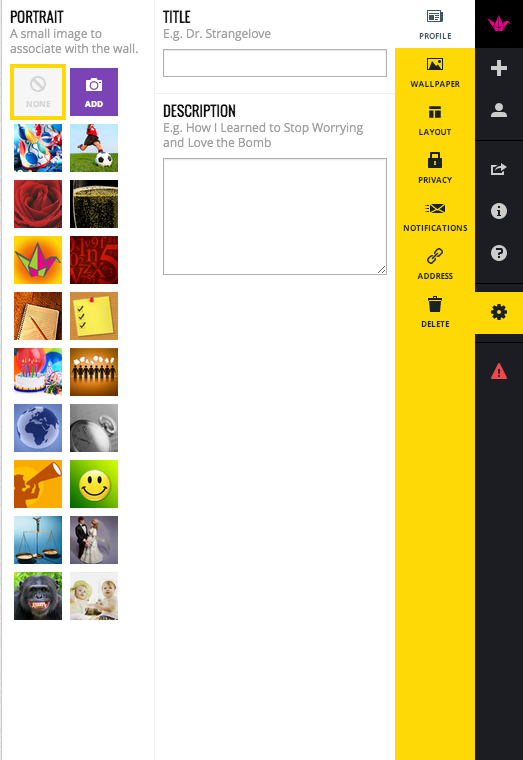
  • On the Right Hand Side are your options.  If you hover over them you will can see what they do.  For example Help, Create Wall, Modify this Wall, & etc....
  • Find Modify this Wall
  • Name your Wall
  • Give your Wall a Description or Instructions
  • Pick a Profile Picture or Upload one
  • Pick your Wallpaper or Upload one
  • Choose your Layout - Freeform can be posted anywhere on the wall.  - Stream posts are posted nice and neatly in a stream.
  • Choose your Privacy Level
  • Modify the URL (Web Address)
Once you are ready to have your students or teachers post to your wall share your URL (web address) of your wall.

Padlet Tips:

  • The Paper Crane will take you to the "Home" page of Padlet.
  • The 4 Squares will take you to all of your Padlet Walls.
  • The + Sign will create a New Wall.
  • The Box with the arrow coming out is to share.
  • To make a post click on the Pencil at the bottom left corner of the wall.

Examples of my Padlet Walls:

  • Word Walls
  • Exit Tickets (assessment)
  • Brainstorming
  • Collaboration
  • Sharing Resources
  • Many More....


Making Our Mark ....

Making Our Mark .... 

One of the tools I used to access students' knowledge for word processing skills is by having them do a simple write up on how they can make their mark on the world.  I ask them to show me what they know how to do, add pictures, change font, and etc... This year I added a twist to the assignment.  After they finished their write up and posted it in Edmodo for me to view they had to create a LOGO that went with how they plan to leave their mark.  This LOGO is no regular LOGO it has an Augmented Reality twist to it.  I used the colAR Dot Day coloring page and the colAR Mix app to bring their LOGOs to life.
My students really loved watching their LOGO spring to life when they where scanning it via their iPad.  I can see using the colAR coloring pages as a spring board for a creative writing projects. The staff at colAR are adding to their coloring pages some of the pages you do have to pay for and some are free.  I try to use the free ones with the kids.  Coloring is not just of elementary students especially if there is an Augmented Reality twist added.

Resources:


Making Our Mark by Slidely Slideshow