Showing posts with label writing. Show all posts

Summer Apps....

Summer Apps....

I bet you are asking yourself; "What apps would an EdTech Leader load on her own children's' personal iPads/Tablets/Smartphones for the summer?" As most teachers and parents know that you lose some of the knowledge if you don't use it on a regular basis, so kids need to exercise that learning muscle.

What would an EdTech Leader load on her own children's iPads/Tablets/Smartphones? Well you are in luck. I have children at all levels.  Below is a list of apps that my children use.


All Apps are subject to change, depending on the developer.  Some may be free now and may cost later or vise a versa.   

My oldest son is in college and doesn't use a tablet other than for reading, but he still uses EdTech tools, but on his computer. Most of these web-tools do have apps.  I like to use EdTech tools that are universal.  Meaning I like to be able to touch any device and access my content being a computer, my phone or my tablet.

College EdTech Tools:


My youngest son will be entering his senior year and is busy studying for his ACT, or we like to hope he is.  He also using a computer over a tablet but does have some useful Android apps on his phone and has access to an iPad. Most of these do have apps.

High School EdTech Tools:

For the people that call me mom by mistake or out of endearment. I still call them my kids even if we are on summer break I would load these apps on their devices.

Middle School EdTech Tools:

I change my daughter's apps frequently.  When she masters a learning app I will change it out, or if I find a better creating app.  I do currently block YouTube for her, just because she was spending most of her time on non-educational videos or preschool level cartoons.  

Our rule of thumb in order to use a device the kids have to use it for educational purpose or for creating.  If they are going to use the device just to watch stupid cat videos or to play numb minding games we take it away for a short period of time.  I do allow 1 of those mind numbing games for her to play, just because sometimes you need to zone out from time to time.  If she plays it the most then I do remove them.

Mid Elementary EdTech Tools:


Descriptive Writing via Augmented Reality & Quiver's Pumpkin Page

Descriptive Writing via Augmented Reality & Quiver's Pumpkin Page

For the month of October I started challenging other educators in how many ways could they use Quiver's pumpkin page in their classroom.  I posted a few ideas that come to my mind such as having students write out step-by-step instructions in how to crave a Jack-o-Lantern and writing a spooky story with their pumpkin creature a character of the story.  After having some interesting conversations with other educators and reminding me that everyone do not always celebrate holidays or the same holidays.  This really made me think how can I include those students so that they can experience the augmented pumpkin.  It hit me, have students do a descriptive writing project and then record themselves describing the pumpkin using Quiver's video recorder.  There will be a creepy sound recorded, but I think it is only activated when you tap the screen.  You can always do a recording with no sound and pull that video into iMovie and then do a voice over recording within iMovie if you are worried about the creepy sound.

There are many ways of doing a descriptive writing of a pumpkin.  My thoughts are to have students write describing a pumpkin with of course not telling people what it is.  Using descriptors such as vertical creases running from the top of the object all the to the bottom, a hollow sound when you know on the object, etc...  Once students have written their descriptive paragraphs then I would activate the Quiver pumpkin and have students record via the Quiver app themselves describing the pumpkin.  I would then take their recordings and upload them to my Google Drive and create a QR code.  I would put the QR codes on their written out description with "Scan the QR Code for the Answer" posted on each writing project.

Another way would be to have students write a poem about a pumpkin or a pumpkin patch or even a riddle.  Then have students record and make a video clip using the Quiver app explaining their answer.  Save the video clips to an online folder such as Google Drive.  Then create a QR code for each video clip.  Past the QR codes on a bulletin board along with the students written out work.

My friends and I hang out all summer playing in the dirt.
We start off very small.  So small sometimes you don't even see us.
Most of us are green with smooth skin but start to change after the being in summer sun.
By September and October we start to change.
Some of us become very short and fat while others get tall and just chubby.
Our skin starts to change color and some of us start to get bumpy.
What do you think we are?

Resources:


Writing Scary Stories with Quiver .....

Writing Scary Stories with Quiver .....

It's October and it's time for scary and spooky stories.  Why not spark your student's creativity with Quiver's augmented pumpkin coloring sheet and turn it into a scary story writing prompt.  Below there are some writing prompts that might help spark that scary story in your students.  I even have a "How to Write a Scary Story" brainstorm worksheet to help organize students' thoughts.   Using Quiver's pumpkin sheet have students use the sheet to design one of their characters for their story.

After students have written their scary stories have them record their voice telling the story via the Quiver app.  Quiver has built in a video clip recorder as well as an audio recorder.  Students can interact with the pumpkin character while they record their scary story.  While they are recording their scary story they can tap on their pumpkin character to include sound effects.

There are several ways to share your students' scary stories.  You could upload their video clips to your classroom website, classroom Facebook, classroom Instagram, classroom Youtube channel, etc... Once they are online you can create a QR Code to redirect people to the stories.  You could post the students' pumpkins on a bulletin board along with each QR Code.  How ever you share them your students will love listening to each others scary stories.


For more ideas on how to use augmented reality in education join us every Thursday at 8pm for #AR4Learning Twitter Chat.


Resources:


Scary Story Writing Prompts:


  • It was a cold Halloween night when I saw the...
  • The mad scientist was creating a new monster that could...
  • The large cauldron of purple liquid started to boil when...
  • I got an eerie feeling when I heard...
  • The mysterious object started floating in the air and...
  • The Halloween pumpkin turned into a...
  • The black cat started to crouch and hiss when...
  • Something in the closet was making a strange noise, so I opened the door and...
  • I couldn't believe my eyes when I saw...
  • As I carefully entered the haunted house, the door shut behind me and...


Making Augmented Jack-o-Lanterns via Quiver ...

Making Augmented Jack-o-Lanterns via Quiver ...


When I was growing up I had to learn how to write out step by step instructions.  The best way my teacher had us learn was to write out the process in making a peanut butter and jelly sandwich.  During the demonstration the person following our instructions could not do anything unless we said it and we couldn't say anything unless we wrote it out.  By the end you knew you where successful if the person following your instructions made a successful peanut butter and jelly sandwich.

When I saw Quiver's pumpkin carving augmented coloring page, I thought how fun would it be for kids to type up steps into creating a jack-o-lantern.  What tools would you need to carve a Jack-o-Lantern? How would you clean out the pumpkin seeds?  What would you do with the pumpkin seeds? How many seeds might be in their pumpkin?  What should they do first carve the pumpkin or clean it? How would they carve the pumpkin?  What shapes would they make?

If your class was doing a science or math experiment say in comparing a small pumpkin to a larger one and which one would have more seeds you could incorporate it into this augmented activity.  Better yet add it to your interactive student notebook.  While they are writing out their instructions you could have them include how many seeds they think would be in their pumpkin.  As a class you can then do ratio of seeds to pumpkins.  You could make a chart of the different shapes used when creating the Jack-o-Lanterns, how many Jack-o-Lanterns have teeth, sunglasses, etc..

After students have typed up their instructions, which I would use Google Docs for.  Create a QR Code that will redirect the viewers to the instructions and place the QR Code with each Jack-o-Lantern.  If using Google Docs you can either make the page shareable or make it view-able on the web.  I would make the instructions view-able on the web.  As a class you can decide which step of instructions might make a successful Jack-o-Lantern by voting or making persuasive speeches and try to follow the instructions to the letter on a real pumpkin.  For younger students I would have them read off the instructions while the teacher follows and does the carving.


Join us every Thursday at 8pm central on Twitter for #AR4Learning to learn more ways to use augmented reality in the classroom.

Resources:


How Was Your Summer Break? - Augmented Activity ....

How Was Your Summer Break? - Augmented Activity ....

Summertime Island
It is that time of year when it feels like Christmas for teachers, Back to School time.  Before school even starts teacher design some fun activities to break the ice so to speak and get kids back into the swing of things.  To get kids engaged and excited about school again why not use augmented activities.  It has been proven that coloring helps reduce stress and calms the mind.  The 1st day of school can have some kids on edge, nervous, and stressed.  Why not use one of Quivers Summer Time coloring pages to help reduce that stress, call the nerves, and engage students all at the same time.

What did you do this summer? Activity:

You can do this as a bell ringer type activity as kids are filling up the room, a center, or even a whole class activity. 

Have a copy of the Summer Time (FREE) coloring page for each student as well as crayons, coloring pencils, highlighters, markers, and etc.. ready for your students.  I would print two of the coloring pages on a sheet of paper, one to save paper and two so that the coloring page will fit better in their journals.  I would have all of these at one table with a pup-tent saying "Have fun Coloring" on one side and "What did you do this summer?" on the other side.  Allowing students to mingle and talk about their summer.  When I am ready to start class or to bring everyone together I would have them sit down on the rug, in a chair, and etc... with their coloring page.  I would talk to them about how we where going to use one of their spiral notebooks as their writing journal.  I would give them time later to decorate their covers for their journal. I have an example of a writing journal ready for students that need to see it to understand.  I would demonstrate that we were going to glue their coloring sheet to one side of the page and write on the facing page.  I would then set them free to write about what they did during the summer.  Reminding them that police their writing and don't forget to use capital letters and punctuation.

After students had finished their writing assignment explain to them that their coloring page comes to life.  Have an iPad or so ready for students to use.  You may want to explain to the students to look for the same icon that is on the coloring page to help them find the correct app to use.  Allow time for them to interact with their creation.   


If I was a Dolphin Trainer Activity:

You will need a copy of the Summertime Island (Cost) coloring page from Quiver per student. I would print two of the coloring pages on a sheet of paper, one to save paper and two so that the coloring page will fit better in their journals.  Have them attach their coloring page into their writing journals.

Have them interact with the coloring page via the Quiver app to help them get inspiration on being a dolphin trainer.  After they have had time interacting with the page then give them the writing prompt "If I was a dolphin trainer ...."  You may want to allow some research time as well for students to find facts about dolphins and dolphin trainers.   Students can also take pictures and video of the dolphin via the tools in the Quiver app.  You may want students to add their pictures to their journal and or a QR code that redirects them to their video clip.


Join us on Thursdays at 8 pm central time on Twitter for #AR4Learning chat as we discuss more ways to use augmented reality in education. 


Using Creative Tools to Bring Writing to Life...

Using Creative Tools to Bring Writing to Life...

Since I teach keyboarding skills I use writing as my go to applying tool.  When I started teaching keyboarding skills it was like pulling teeth to get my students started.  They would whine a lot and ask: Well how long does it need to be, What do I need to put into it, Is a paragraph for you 3 sentences, and etc..  To get their creative juices flowing I would use a variety of tools.  The top two tools that really got my students started in writing just happen to be augmented triggers and 360 environments. I truly believe the tools get students up, moving, and engaged in the subject or area they are writing about.

Keep in mind when it comes to augmented reality content you should treat it as a tool, and it doesn't have to be the main focus of your lesson or activity.  Just like any tool it is there to enhance the learning experience, not to be the end all be all part of your lesson.

Since 360s are a very engaging tool I was beyond excited when Buncee made it possible for me to embed them into their platform.  Talk about personal learning! I can now create my own 360 environments and use them with my students.  You can also get 360s from Nearpod and Thinglink. When Thinglink 360s get out of beta testing you will be able to add resources and information to the 360s.  I can't wait for this feature.  Talk about making learning engaging.

The reason I really like Buncee's ability to add a 360 to a slide also allows me to add information around the 360. I can leave instructions, suggestions, questions, and etc.. with the 360.  Below is a #Whatif Field Trip activity I created. The idea of this activity is for students to use these slides in the augmented interactive writing journal. My idea is to print these slides off the size of a business card and have them adhere them to pages in their notebook along with Quiver's map coloring sheet the printed off in a 4x6 size.  I want my students to explore the 4 different areas and write about them.  My students will also have to do some research about them.  Then I want them to mark on their Quiver map where they think the different locations are.  I would have a map per place or one large one.  For me the map will be my assessment.  Did they find the general location of each place.  You will notice I did number each location so my students can just put the number on the map.  For the keyboarding part they will be making a SMORE of each place and include pictures of the augmented map.

I plan to use augmented journals for students to jot down their notes when research. I want to move into having them sketchnote as well.  (baby steps)


You will notice that the 1st location loaded differently.  That 360 is one I made with Bubbli of a zoo near by our town.  The other 360s I pulled in within Buncee.

Since I've been using augmented tools and 360s my students really do not whine about writing or ask me how long does it need to be.


Resources:


Join us every Thursday at 8pm central to learn more ways to use augmented reality tools in education. 


Augmented Color Poems ....

Augmented Color Poems ....

Writing poetry can be hard for students.  Why not bring their poems to life with the use of augmented reality.  Start off with something simple such as a poem about their favorite color.  Have them use an app the can draw/design in or Google Draw to create the image that will be turned into their trigger.  For this trigger image I used Canva.  The goal of this augmented color poem is to scan the trigger and the poem along with slideshow of pictures that represent the poem will appear.  Again I used Canva to write my poem and save it as a jpg file.  Your students can use any drawing app as long as they can export their creation as a jpg file.

For my augmented color poem you will need the Blippar App.  Within the app you will need to enter the code "23722" before scanning the image.  I download the purple poem as a jpg file then uploaded to Blippar's BlippBuilder platform.  I also found images that related to the poem and created a slideshow within Blippar's BlippBuilder platform.  Blippar has made it pretty easy to self-publish your augmented content.  All you really need to know is how to click the "Upload" button and find your files.  You can take this project a step further and add a video or audio file of the student reading the color poem.

I would create a bulletin board and post all of the students triggers they created along with instructions on how to activate the augmented part.  I would also create the augmented poems all in the same campaign so that all of the triggers had the same code.  You could even add their trigger image to their writing journal.

Join us for #3rdChat on May 4th at 8pm central/ 9pm easter as we talk about how you can use augmented reality in education.


Sketchnotes .... Inspired ....

Sketchnotes .... Inspired ....

I attend tons of educational conferences throughout the year.  Some I am there just as an attendee to learn from others while other conferences I am there as a presenter sharing my EdTech skills and insight.  While I was in the Tampa area last year I met this pretty spunky red head who is very talented in sketchnoting.  If you do not know what sketchnoting is it is a method of making your notes visual and tying emotion to your notes.  Sketchnotes include a mix of images, words, and color. When you refer back to your sketchnote you remember more why you thought that point, fact, and etc.... was so important.  This amazing talented teacher that I met in the Tampa area at ST4T in 2015 inspired me to let go of my standard you write neatly on the line from left to right and to think outside of the box.

If you could take a peek into my mind you would see I truly do not think inside the box.  I have thoughts floating in bubbles, while others bounce off the walls, and still others hiding in the dark.  I think that sketchnoting will be a way to let my thoughts and ideas out.  Keep in mind I am no artist.  I can not draw a straight line even if I had a ruler.  Even though I am not talented in the art, drawing, and doodling world I am going to do my best to get my thoughts out of my head and make them a reality.

Thanks Amber for being an inspiration.
 

Christmas in Chromville ....

Christmas in Chromville ....

Augmented reality is a fun way in getting kids reading and writing.  Chromville also agrees and has created a contest to give away some pretty cool Chromville prizes.

Their contest:

Do you like reading stories? Follow them on Facebook because along this month they will publish the first Chromville tale! Get ready to accept the challenge. All the participants will be include in the sweepstake of one Chromville pack!

Complete any of this steps (the more you do, the better!)
Follow us on Facebook
Comment any of our post about our Christmas story.
Share any of our Facebook posts.
Complete the challenge that is at the end of the Facebook post. (Come on, it will be fun!)

The winner will be announced in December 28!

The Chromville Christmas Challenge:

Chromville wants to invite you to take part in their Christmas challenge. The winner will get 5 free codes of Chromville World!

The Steps:

1. Download their Christmas material (for free):
Christmas cozy picture: learn about the Christmas plants and the decoration elements with the Chromers. Include whatever you want to make more beatiful the illustration!
2D material to build up a Christmas handmade gift box. The best option to hide a special present for your loved ones!
Christmas Augmented Reality postcard to wish Merry Christmas to all your family and friends. Remember, it is included in the first Chromville app!

2. Show your activity on your own blog: everybody will see how creative your are students!

3. Share your post with them on social media (Twitter, Facebook, Instagram, Pinterest or Youtube). The more you do it, the better!

4. The most creative post will be the winner. Do your best!

Don’t forget to mention Chromville, it is needed to be included in the contest!


The 1st Winter Augmented Writing Prompt ....

The 1st Winter Augmented Writing Prompt ....

To accompany the Mayflower Augmented Writing prompt, I've created the 1st Winter Augmented Writing prompt.  This lesson plan/activity has 3 Kagan structures to go along with AugThat's 360° augmented environment trigger "Winter Forest by the shore".  You could use this writing prompt with learning about the 1st Thanksgiving or the 1st Christmas for the pilgrims.

To get access to this trigger to use with these activities you will need to fill out AugThat's 1 Million Kids form or have access to their 360° Environments. 

Lesson:


When you use educational augmented content with your students please fill out this form. I would like to track how many kids are being reached with educational augmented content.

The Mayflower Augmented Writing Prompt ....

The Mayflower Augmented Writing Prompt ....

Teachers always ask me how can they incorporate augmented content into appropriate grade level lessons and or activities.  If you can give me a grade level and a topic you would like to see an augmented lesson or activity I can normally come up with a pretty engaging lesson and or activity.  It may take me a day or two to find the right trigger or create one that will work for your topic.  I also like to try and include the common core standard with the lesson and or activity.

With AugThat's help and their "An Ocean Landscape" 360° Environment trigger I created two activities.  The 1st activity focuses on observations and listening skills.  The 2nd activity is the writing prompt asking kids to think about what it might be like to live on a ship.  To get access to this trigger to use with these activities you will need to fill out AugThat's 1 Million Kids form or have access to their 360° Environments.

Lesson:

The Mayflower Augmented Writing Prompt
This lesson also has Kagan structures.

When you use educational augmented content with your students please fill out this form. I would like to track how many kids are being reached with educational augmented content.

Bringing Characters to Life via Chromville.....

Bringing Characters to Life via Chromville....

Since Chromville has their #ChromvilleHalloween contest underway I thought I would share one of my lessons I do with my students with Chromville's Custom Character.  I love to use more than one app so with this lesson I've paired it up with AugThat and Pic Collage. 

 I have my students design and decorate Chromville's custom characters and write a story that focuses on the character's talents.  I also have students explore possible environments using AugThat's 360° Environment triggers.  I then have students take pictures of the environment and their character then make a photo collage using Pic Collage to go along with their story.  I do have my students publish their stories as a blog post.


Students love to design their characters and tell stories about them.  Adding the 360° Environment just helps them visualize a possible environment that their character could actually live.  Click here to view my "Bringing Characters to Life" lesson plan.

When you use educational augmented content with your students please fill out this form. I would like to track how many kids are being reached with educational augmented content.

WHY USE AR CHALLENGES .... THE SERIES .... PART 3

WHY USE AR CHALLENGES .... THE SERIES .... PART 3


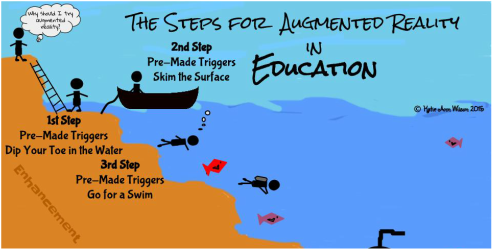
Pre-made augmented triggers can take learning deeper. We are going to go a little beyond skimming the surface with some already made augmented triggers. For step 3 of the series we will be looking into how pre-made triggers that are connected to an animated lesson, a 3D model, a video, or a 360° environment can take the learning experience to the next level.

Making an Interactive Notebook, Binder, or Journal:

I know several teachers that like for students to take notes, write in a journal, or keep a running binder of resources. Why not add an enhancement to the student's journal, notebook, or binder and reinforce a concept, topic, or enhance the learning with an augmented trigger. Someone else has already done the work of creating the augmented trigger all you have to do is match it the topic, concept, or lesson. That someone being the team of Aug That. They have tons of animated lessons from 1st grade through 8th grade on both English/Language Arts and Math, which by the way they have aligned to the common core standards. They also have massive library of 3 dimensional objects and 360° environments.

Studying space and different rockets why not put a augmented trigger of the rockets you are studying in your students' notebook. When they scan the trigger the 3 dimensional rocket pops out of their notebook where they can spin it around and zoom in on the rocket for a better look. You can't really get that experience just looking at a picture.

You have a few students having trouble with retailing a story. On their journal page adhere an augmented trigger that is tied an animated lesson that reinforces how to retail a story. A student needing a little help with developing a supporting topic, print out the already made augmented trigger and have the student attach it to his or her notes, journal, or added it to the resource binder. What if a student was gone and missed how you explained how to added and subtract decimals. Stick an augmented trigger on the assignment or, in the notebook, or send home a flashcard with the trigger on it.

Studying different historical sights such as the pyramids in Egypt. Why not have the students add an augmented trigger to their notes. When they scan it a 3D model of the pyramids pops out. Want to take them to see a volcano, summit for a mount range, or an ocean reef? Add an augmented 360° trigger to your students' writing, notes, or resources. When they scan the trigger it will transform your classroom into that environment.

Example of an Interactive Math Notebook:

I've been working on a 7th grade Interactive Math Notebook for a teacher friend. This notebook is basically a spiral notebook kids are writing notes, adding foldables, and other resources that pertain to 7th grade math. The teacher gave me the notes the kids are writing along with foldables she has created. My job was to go through Aug That's library and match up the math concept with the already created augmented triggers such as adding and subtracting decimals, fractions, and etc...

Once I found the augmented trigger that went with a certain math concept I copied and pasted the trigger image on to the foldable. If there was not a foldable just notes I then created a sheet full of that the trigger I wanted to use. The kids then cut and pasted the trigger next to their notes. Below is the link to one of the math foldables I added a pre-made augmented trigger to.

The Challenge:

You will have to contact Aug That's support team for this challenge. Ask them to show you an augmented animated lesson, 3D object and a 360° environment. Let them know what grade level and subjects you are working with. Don't forget to let them know I sent you.


Once you have tried all three different pre-made triggers I want to share your experience. You can choose how you want to share it. For example you could write a blog post, Tweet out your experience, share it with a friend, or even join my Augmented Reality for Education Group and let us know about your experience. Remember when sharing via social media use the hashtag #TechieEdu.


Resources:


Eye Catching News = Augmented News Report


Eye Catching News = Augmented News Report

I am so excited to announce the release of Eye Catching News. This project takes current events and brings it to life. With a help of a talented friend at AugThat we developed 2 unique triggers, one for World News and one for National News. When you scan these triggers using the AugThat's STAR app (Supreme Tutoring Augmented Reality) you will receive an animated news report. What is the unique part is the stories will change about every two weeks or so. The triggers will stay the same but the news stories will automatically change.

Not only did we design these triggers but we also have developed lessons and or activities to go along with the news stories. Best of all the stories can be used at all grade levels. You can download a lesson and or activity that best fits your needs. There are some lessons/activities designed for younger students, older students, and along with question starters. Being a technology teacher and knowing how important it is to have tech integration I've also included Tech Integration ideas and tools. I broke down the tech integration into apps and web based tools since not everyone has iPad/tablets and or computers/netbooks/Chromebooks.

Ideas:


  • Start an interactive notebook and attach the two triggers to the cover or inside the spiral notebook, 3 tab folder, or a 3 ring binder.
  • Use the writing prompts to start a journal and or blog.
  • Have students write/create digitally and submit their work via an LMS such as Edmodo.
  • Post Question starters in an LMS such as Edmodo to create an online decision.
  • Mix and match the pre-made lessons. (Don't use the same one for each story.)
  • Can be used as a center - self guided.

Using the Triggers:


  1. Download the STAR app from AugThat (Supreme Tutoring Augmented Reality)
  2. Launch the App
  3. Tap Start Lesson
  4. Tap Current Events
  5. Scan the Triggers

The Activities:


Other Activities & Triggers:


I already of requests for a Science, Math, and a Person in History augmented lessons similar to the Current Events.  So keep your eyes peeled I am sure I can work something out.

Why Use AR Challenge ... Part 2...

Why Use AR Challenge ... Part 2...


Using augmented triggers that are already made not only saves you time but adds enhancement to your lesson without changing the learning objective. For part two of the Why use AR series we will use two pre-made augmented triggers.

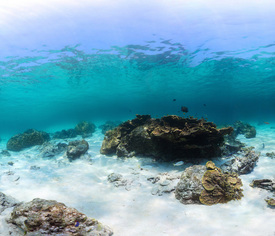
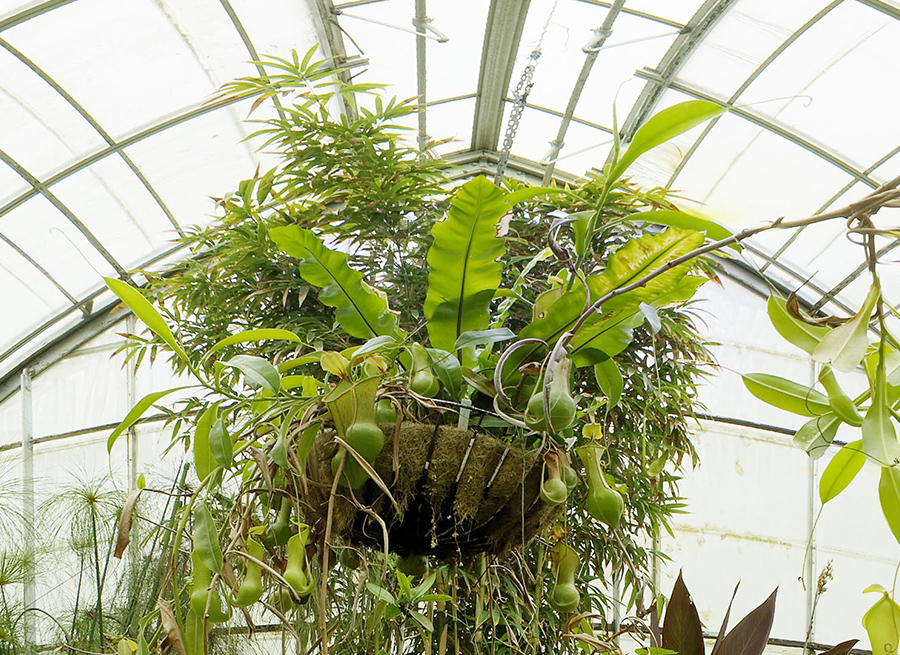
Describe the Photo

Look at the pictures below and answer the following questions:
  • As you are describing what is happening in the photo use where it is happen. For example - on the left, in the middle, behind and etc....
  • Use present conditions - What are they doing? and etc...
  • What is the weather like?
  • Is the location inside or outside?
  • Use adjectives to explain the mood of the setting?
  • How does this image make you feel?
  • Would you like to be there? Why or Why not?
Now take a look at the second photo and answer the same questions.


Comparing:
Looking at the two photographs what do you see that is similar and what is different. Use the following vocabulary to to describe the similarities and the differences.

Similar: all, most, both, also, as well, & too
Different: but, however, whereas, on the other hand, & although

Speculate:
Speculate the situation and use words to describe such as: use may, might, must, can't be, seems to, & appears to be.

Your Reaction:
Give your reaction to the photographs and use words such as: I'd love, hate to do that, It looks great, it appears to be dangerous, It makes me want to try, & It wouldn't suit me.


Adding AR:

You are going to ask the same questions but this time instead of just looking at the two images you are going to explore them. The app you will need is (STAR by Aug That) Supreme Tutoring Augmented Reality.

Steps to Explore:
  • Launch the app
  • Click Start Lesson
  • Click 360° - Panorama
  • Scan the 1st image with you device
  • Once the AR experience is loaded walk around the room.
  • Using your device to look up, look down, and look all around.
  • Describe the Experience

Explore the 360° environment and answer the following questions:
  • As you are describing what is happening in the around you? For example - on the left, in the middle, behind and etc....
  • Use present conditions - What are they doing? and etc...
  • What is the weather like?
  • Is the location inside or outside?
  • Use adjectives to explain the mood of the setting?
  • How does this image make you feel?
  • Would you like to be there? Why or Why not?

Now experience the 2nd image and answer the same questions.


Comparing:
Now that you experienced the two environments what do you see that is similar and what is different. Use the following vocabulary to to describe the similarities and the differences.

Similar: all, most, both, also, as well, & too
Different: but, however, whereas, on the other hand, & although

Speculate:
Speculate the situation and use words to describe such as: use may, might, must, can't be, seems to, & appears to be.

Your Reaction:
Give your reaction to the photographs and use words such as: I'd love, hate to do that, It looks great, it appears to be dangerous, It makes me want to try, & It wouldn't suit me.


Share your your experience via social media. Use the hashtags #TechieEdu and #AR4Learning.


Resources:

WHY USE AR CHALLENGES - THE SERIES ... PART 1

WHY USE AR CHALLENGES - THE SERIES ... PART 1

I've been asked to help others in dipping their toes so to speak into the water and start exploring the possibilities of augmented reality (a.k.a. AR) in education. To help build the support line in learning how to incorporate augmented reality in education I am developing a series of challenges. My goal is to launch each new challenge via my podcast as well as develop an ebook to support the learning process. As each challenge is completed the participants will also be able to earn a badge.


We will start with using pre-made triggers and work our way through the challenges until you and your students are creating one of a kind augmented experiences.

ONE APP AT A TIME...

For the 1st challenge we will be dipping our toes into the AR pool and you will need makers, crayons, or colored pencils. Once you have your supplies I want you to take a look at the following picture to the right.
Questions I want you to think about:

What is the name of this character?
Where do you think this character lives?
What kind of job does this character have?
Where do you think this character is going?
Now click on the file below and print it out.

After you have printed out the picture color it. As you are coloring I want to think about a the following:


  • What types of characteristics does your character have?
  • What kind of day is your character having?
  • Is your character going on a journey? Late for work or school?
  • What does your character like to do for fun?
  • What is your character's favorite food, activities, colors, animals, and etc...
  • After you are done coloring your picture it is time to write your character's story. In your story describe where your character is and what your character is doing. Tell us what is your character like? Where your character might be going?


Take a picture of your colored image and added it to your story. I suggest using Google Docs to write your story.
Share your story via social medial using the hashtage #TechieEdu and #AR4Learning.

Download the File

Adding AR to Your Story:

Augmented reality is a tool that can be used to enhance the learning experience. Using this simple augmented coloring page will help take the writing process to the next level and add a spin to your story.

The app you will need to download is Chromville. Chromville is an augmented reality company from Greenland that is bringing characters to life. Once you have the app downloaded you will scan the picture you have colored.

How to Scan:
  • Launch App
  • Tap Play
  • Tap Dana
  • Hold the iPad/Tablet over your colored image
  • When the red rectangle turns green you will get a message not to move.
  • Your augmented experience will then appear.
The augmented trigger I gave you is a labyrinth. You can interact with your character you colored and move your character through the labyrinth. Now that your character has made it through the labyrinth it is time to revise your story. For your revision you will need to add obstacles your character needs to over come.

After you have revised your story it is time to share it. Share your story using social media use the hashtag #TechieEdu and #AR4Learning.

Coloring pages from augmented reality companies can add a new depth to the learning process. They can be used to brainstorm settings, characters, events, obstacles, and etc... They can also be used to help develop the writing process as well as rewriting skills.

Tips:

  • I like to reveal the app that is needed after students have their rough draft completed and have colored the AR trigger.
  • Mix up the different AR coloring trigger pages, this keep the kids guess which app to they need to use.

Resources:


Take the Green-Screen Challenge - #TechieEdu!

Take the Green-Screen Challenge - #TechieEdu!

Have you watched the weather report and wonder how in the heck did they get that map or video to play behind them. You and your students can create projects just like the weather man broadcasts the weather report with one simple iPad tool.

Green-Screen Project Ideas:

Teacher in-Residence - Teachers could pre-record a lesson for the substitute so that class could go on as usual. Once shared with students, they could return to the lesson again and again as needed
Historical Role-Play - Teachers could have students re-enact different historical events either using the portable green screen with props or the larger green screen with themselves.
Historical Reporting - Students could use the green screen to create a journalistic approach to report important things that have happened in the past.
Click Here for more ideas.

The Challenge

The Challenge via the Podcast on Remarkable Chatter
Review the presentation - Creating Amazing Green-Screen Projects.
Download the Veescope Full Version app
Play with the app. You do not need a green-screen to work the app, all you need is a blank wall, whiteboard, door, and etc...
Create a 1 minute green-screen project.

Upload your project to YouTube, SchoolTube, Vimeo, and etc...
Find the SHAREABLE Link.
Tweet out your Green-Screen project using the hashtag #TechieEdu.
Share your project idea on the Green-Screen Idea board.
Claim your badge. 

Resources:

Portable Mini Green-Screen....

Portable Mini Green-Screen....

One of the projects I like to do with my 6th grade students is "On the Scene Reporter".  I have a wall in my classroom painted green, for our staging area that I normally use for this project.  My students are normally the reporter giving a report on Ancient Greece.  Since this will be my 3rd time doing this project I have to switch it up just a little.  I've been planning a workshop for teachers on Green-Screen projects and it hit me how I could switch it up and still be a green-screen project, I need portable mini green-screens.  It just happened to be Super Bowl day and we just happened to have gotten some extra large pizzas from the store so I had a few boxes to play with.  Since the pizza boxes had a window I decided to paint the inside and the back of the box, this way I could use both sides.  I could use the box as a regular green-screen or flip it and have a puppet show / animation stage green-screen style.

Puppet Show / Animation Stage
I choose a pizza box because it is flatter and can stand up by itself. Which will make it easier to travel with and to store.  As I played around with the box and the green-screen app Veescope I did noticed that you had to be careful with lighting and shadows.  I also noticed that some of my props or actors were a little on the short side so I took another box and painted it green to make a platform for them to stand on.  My little actors can now blend in better with the background image or video.

One of the reasons I decided to create a mini green-screen was because I have a few students who love Legos and I know they would create some amazing stories using green-screen and their Legos.  I also have a few shy students who refuse to stand in front of a camera and give a report.  Having a mini green-screen would give them an option to still do the project but use an actor to replace them as the reporter.  They would still have to add their voice either at the time of recording or overlay it with the iMovie app.  Either way it is a win, win situation.  My students are now not only the reporter but now they can be a director, producer, casting director, writer, and agent.

Paint a smaller box for a platform.
Having a portable mini green-screen would also allow my students to record anytime and anywhere.  Giving them a choice on how they can do their green-screen projects opens the door to their creativity.

Project Ideas:


  • On the Scene Reporter
  • Puppet Show
  • Book Trailer / Report
  • Use Paper Dolls / Print out of famous people & make them move and tell their story.
  • Wear a Green Glove and Make the Actors Move
  • Paint Bamboo Skewers Green and Attach them to the Props & Actors to Make Them Move
  • Use Explain Everything and work out a math problem.  Use that recording as the background in the Veescope app and have your actor explain how they solved the problem.
  • Have a time lapse video of a plant growing, science experiment, etc... saved into the Veescope app as the background.  Then have your actor explain the process.
  • Create Postcards of places your actors saw while on their Dream Vacation.


Tips:

  • Paint smaller boxes and use them as platforms for your props and actors.
  • Use an iPad stand to position your iPad just right for recording.
  • Record or snap stills in a well lit area or use a desk lamp with a bendable neck to provide lighting.
  • Record in a quiet place.
  • Save images and or video clips to the iPad that has the Veescope app.
  • Use the Full version of the Veescope app. 


Bring Learning to Life One Classroom at a Time....

Bring Learning to Life One Classroom at a Time....

This fall I launched the 2nd year of the Global Digital Scrapbook Project.  My goal is to encourage others to bring augmented reality to their classroom.  I plan on posting in our global project ways I use augmented reality in my classroom.  If you are new to augmented reality start off simple with pre-made triggers such as the Dot Day coloring page by colAR.  My middle school students really love using this page and have a lot of fun interacting with it.

As I go through the school year I will continue to post in the global project ways my students are using augmented reality.  Feel free to join us and submit your class stories as well.

I also have a Google+ group just for educators to learn, share, and get help with augmented reality.  Feel free to join and share your stories, get some help, or learn more about AR.

Resources:


Making My Mark ..........

Making My Mark .....

My goal is to bring learning to life, and I love to augmented reality to do this.  This year for Dot Day I had my students write about how they could make their mark on the world.  When they finished with their writing assignment they were instructed to use the Dot Day color sheet by colAR Mix to design a LOGO to go with their assignment.

The second part of the assignment was for my students to create a blog.  I want them to own this blog, make it theirs, and post to as often as they would like.  Their 1st post was their Make My Mark assignment.  They also had to include an picture or a collage of pictures of them and their LOGO.


What my students may not have caught was I was making my own mark in their lives.  I love planting seeds and watching what grows. Encouraging them to write and own their own blog my just unleash the next best seller novel writer, the next high paying blogger, or even the next famous photographer.  I can't wait to see were my students' blogs will go.  What I do know is that writing for an audience is more meaningful then just writing for the teacher.


I have created a Symbaloo board to house their Make My Mark posts.  I plan on added to it as more posts are submitted.


How do you plan on Making Your Mark on the world?