Showing posts with label self-publishing. Show all posts

Why Use AR Challenge ... Part 2...

Why Use AR Challenge ... Part 2...


Using augmented triggers that are already made not only saves you time but adds enhancement to your lesson without changing the learning objective. For part two of the Why use AR series we will use two pre-made augmented triggers.

Describe the Photo

Look at the pictures below and answer the following questions:
  • As you are describing what is happening in the photo use where it is happen. For example - on the left, in the middle, behind and etc....
  • Use present conditions - What are they doing? and etc...
  • What is the weather like?
  • Is the location inside or outside?
  • Use adjectives to explain the mood of the setting?
  • How does this image make you feel?
  • Would you like to be there? Why or Why not?
Now take a look at the second photo and answer the same questions.
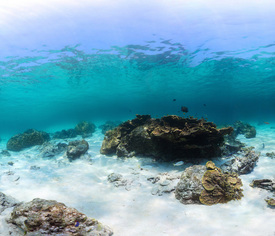
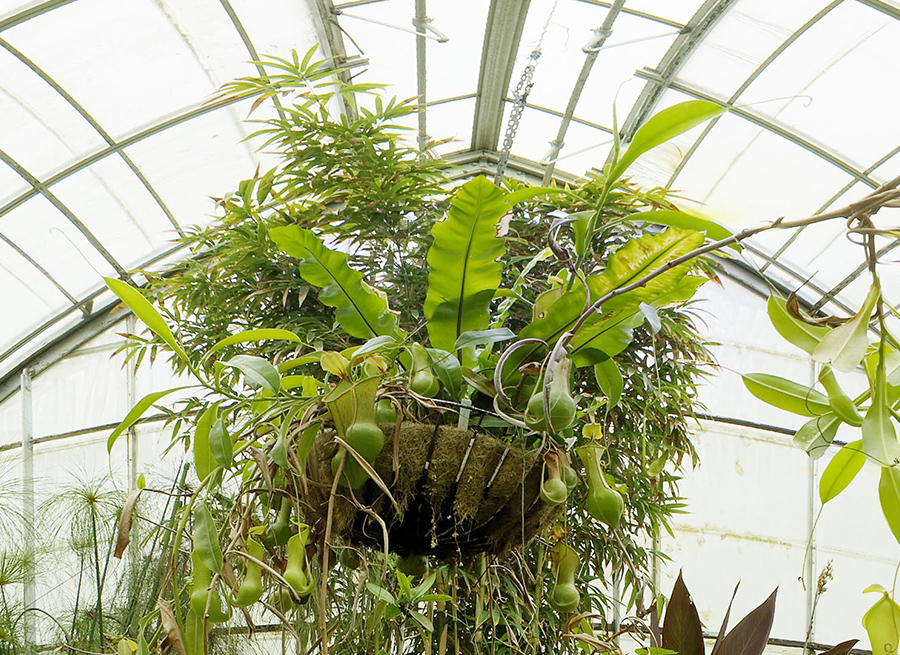


Comparing:
Looking at the two photographs what do you see that is similar and what is different. Use the following vocabulary to to describe the similarities and the differences.

Similar: all, most, both, also, as well, & too
Different: but, however, whereas, on the other hand, & although

Speculate:
Speculate the situation and use words to describe such as: use may, might, must, can't be, seems to, & appears to be.

Your Reaction:
Give your reaction to the photographs and use words such as: I'd love, hate to do that, It looks great, it appears to be dangerous, It makes me want to try, & It wouldn't suit me.


Adding AR:

You are going to ask the same questions but this time instead of just looking at the two images you are going to explore them. The app you will need is (STAR by Aug That) Supreme Tutoring Augmented Reality.

Steps to Explore:
  • Launch the app
  • Click Start Lesson
  • Click 360° - Panorama
  • Scan the 1st image with you device
  • Once the AR experience is loaded walk around the room.
  • Using your device to look up, look down, and look all around.
  • Describe the Experience

Explore the 360° environment and answer the following questions:
  • As you are describing what is happening in the around you? For example - on the left, in the middle, behind and etc....
  • Use present conditions - What are they doing? and etc...
  • What is the weather like?
  • Is the location inside or outside?
  • Use adjectives to explain the mood of the setting?
  • How does this image make you feel?
  • Would you like to be there? Why or Why not?

Now experience the 2nd image and answer the same questions.


Comparing:
Now that you experienced the two environments what do you see that is similar and what is different. Use the following vocabulary to to describe the similarities and the differences.

Similar: all, most, both, also, as well, & too
Different: but, however, whereas, on the other hand, & although

Speculate:
Speculate the situation and use words to describe such as: use may, might, must, can't be, seems to, & appears to be.

Your Reaction:
Give your reaction to the photographs and use words such as: I'd love, hate to do that, It looks great, it appears to be dangerous, It makes me want to try, & It wouldn't suit me.


Share your your experience via social media. Use the hashtags #TechieEdu and #AR4Learning.


Resources:

Making My Mark ..........

Making My Mark .....

My goal is to bring learning to life, and I love to augmented reality to do this.  This year for Dot Day I had my students write about how they could make their mark on the world.  When they finished with their writing assignment they were instructed to use the Dot Day color sheet by colAR Mix to design a LOGO to go with their assignment.

The second part of the assignment was for my students to create a blog.  I want them to own this blog, make it theirs, and post to as often as they would like.  Their 1st post was their Make My Mark assignment.  They also had to include an picture or a collage of pictures of them and their LOGO.


What my students may not have caught was I was making my own mark in their lives.  I love planting seeds and watching what grows. Encouraging them to write and own their own blog my just unleash the next best seller novel writer, the next high paying blogger, or even the next famous photographer.  I can't wait to see were my students' blogs will go.  What I do know is that writing for an audience is more meaningful then just writing for the teacher.


I have created a Symbaloo board to house their Make My Mark posts.  I plan on added to it as more posts are submitted.


How do you plan on Making Your Mark on the world?


Summer Goals....

Summer Goals....

During the summer I like to set goals for myself and I get really excited when I meet these goals.  One goal was to create a interactive ebook for my 6th grade history class.  I knew it would take me most of the summer to complete this task since history is not my strong subject.  I am sure after I start to use the ebook with my students that I will be adding and changing things, but for right now it is complete and ready for me to use.

Another goal I set for myself was to start a global community for teachers to learn more about augmented reality.  As of this morning I have 132 members from around the world that have joined the AR for Educators community.  I am really thrilled about this group, we have not only educators in the group but also some developers.  It is a place where educators can go to learn, share, and get help with augmented reality. My goal for this group is to connect with as many educators and augmented reality developers in order to share and learn more about ways to use augmented reality in the classroom.

Coming Up Next...

Next on my to do list is to launch my Global Digital Scrapbook Project.  This year the project is going to focus on how teachers and students are using augmented reality.  My plan is for the project to showcase ways augmented reality is being used in the classrooms around the world.  Keep an eye out for the launch.  I would love for your classroom to join in on this project.

Augmented reality lessons are next up on my list to do.  I can't wait to share with you the details of this project.  I almost did a backflip when I was asked to work on this project.  If all goes according to plan these lessons will be launched by October.  I will keep you posted on the details.

Check Out My Completed Goals:

When downloading ebooks use Safari on your iPad.  You may also download these ebooks to your Mac if you have Maverick.
It does take a long time to download these files.

Coming Soon:


Making Our Mark ....

Making Our Mark .... 

One of the tools I used to access students' knowledge for word processing skills is by having them do a simple write up on how they can make their mark on the world.  I ask them to show me what they know how to do, add pictures, change font, and etc... This year I added a twist to the assignment.  After they finished their write up and posted it in Edmodo for me to view they had to create a LOGO that went with how they plan to leave their mark.  This LOGO is no regular LOGO it has an Augmented Reality twist to it.  I used the colAR Dot Day coloring page and the colAR Mix app to bring their LOGOs to life.
My students really loved watching their LOGO spring to life when they where scanning it via their iPad.  I can see using the colAR coloring pages as a spring board for a creative writing projects. The staff at colAR are adding to their coloring pages some of the pages you do have to pay for and some are free.  I try to use the free ones with the kids.  Coloring is not just of elementary students especially if there is an Augmented Reality twist added.

Resources:


Making Our Mark by Slidely Slideshow


Growing and Connecting via a Global Project ....

Growing and Connecting via a Global Project ....

Winning LOGO Design
I attended several teched conferences, workshops, and webinars right before school started this year.  They inspired me to create a global project.  I am really big into scrapbooking and thought how cool it would be to have a living digital scrapbook that students could use to share their stories.

I decided to use Edmodo as my platform to connect, collaborate, and to share my dream for my global project. The Global Digital Scrapbook Project for 2013-14 was then born.  I created my goals and posted the outcome I wished to achieve with this project.  I needed a sign-up form for those who decided to join me on this journey so I created a simple Google Form that I shared with anyone and everyone who would listen to me.  By the end of October I had 75 schools from around the world that joined me in this amazing journey.

Within our Edmodo Group I created several small groups for students to use to post, collaborate, share, and connect with the other students that were participating in the project.  The students can post into groups such as art, economics, culture, school life, and etc....  My favorite group is the Spanish-English group where students can share and learn either in Spanish or English.  I did create yet another Google Form for students to fill out and and request to join the small groups.

This project has been a huge learning experience.  When I started the project I had to be the trainer to the teachers that joined in.  Most of them didn't really know how to use Edmodo or had never used it before.  I created little video clips to help those that needed it among answer tons of emails and messages.  I would like to think it has been a success since it is now February and the communication within the small groups seem to be running smoothly.

Some of the ways I've used Edmodo beyond just communicating with the thousand plus students and teachers was holding a LOGO submission for our project.  Students submitted their LOGO designs and then I created a Quiz so that kids could vote on their favorite design.  I used the Quiz feature because I could add an image to each choice.  I also post the "Page or School of the Week" and I am able to see how many times that link has been clicked on.  This helps to know if the participates are looking at what I post.  Teachers in the project also post polling questions and discussion questions within the small groups.  Students then receive either a grade for journaling or participating.  We are trying to teach the students not to type in Text talk, write in complete and proper sentences, and digital citizenship all at the same time.

Now the goal is to get all of the schools to add something to the Global Digital Scrapbook.  Again most of the teachers have not used the website creator I am using to host our scrapbook so I have to put on my trainer hat again.  The goal is to have a completed Global Digital Scrapbook by May.  I have faith that this will too happen.  It takes time to get a thousand plus people all on the same page and understanding what is needed so keep an eye on the project as it grows daily.

Tools Used for the Project:


The Global Digital Scrapbook Project (gdsp2013)


Update on eBook ....

Update on eBook ....

I created an interactive eBook via iBook Author for my 8th grade Computer Apps class.  It has some video clips I made or found very helpful along with interactive review questions and helpful screenshots.  I used the eBook this past semester with my students.  The feedback from my students was very positive.  They liked being able to watch, pause, rewind, and even fast forward the video clips I made. I also received high marks from my students because I had hyperlinked the videos to my classroom YouTube channel.

Now that I had a chance to use it with students I went back through my eBook and made some minor adjustments suggested by my students and added student created examples.

If you would like to view my little eBook Mrs. Wilson's Computer Apps - Let's Take Flight please click here.  If you had previously downloaded my eBook via the iTunes store you should see in iBooks that is has an update.  As I continue to use this book with my students I will be updating it as well as adding more resources.

I am also known as the Queen of Typos.  If you see a mistake please let me know.

Dreaming with My Eyes Wide OPEN....

Dreaming with My Eyes Wide OPEN....

Technology is aways evolving, changing, expanding, and reinventing itself.  I think that is why I love teaching with technology so much.  I never get bored and love learning new ways of using technology, I also love sharing how to use the technology.  I have been seeing teachers embracing the use of Google Glass in their classroom.  Every time I hear that a teacher has the chance to use Google Glass my mind goes into overload.  Just think of the possibilities Google Glass can offer.

  • 1st Person Video Guides or Tutorials 
  • Use of Augmented Reality
  • Creating Augmented Reality
  • Creating One of a Kind Interviews, Stories, and Projects with Green-Screen effects
  • Learn New Languages or just Translate a Language
  • For Observations
  • A Student's View of a Lesson or a Teacher's View of the same Lesson
  • Making Connections through Google Hangout
  • Record Research, a Science Experiment, or Document the Learning Process
  • Use to Reflect on an Assignment or Lesson
  • Record a Field Trip or a Once in a Life Time Experience 
  • Build a Portfolio
  • Exploring the World through a Different Perspective

Twenty-five years ago who would have thought we would replace the kitchen wall phone with a phone that can access the internet, check email, or take a picture.  Even ten years ago we thought wearable technology was Science Fiction, but here we are and it is happening now.  I do not know what the future has in-store for us. What I do know is that the possibilities are endless, we just have to think outside of the box and be a little creative.

App / Tool of the Week .... Livebinders

App / Tool of the Week .... Livebinders

Think of Livebinders as a Digital Trapper-keeper.  I like to use Liverbinders as a Digital Portfolio for my students.  Student can create a Digital Binder and add their work.  This Digital Binder can follow them through their Educational Career.  Students are then able to then show their growth.

Things You Can Add to Your Binder:


  • PDF, Word, & Spreadsheet Files 
  • Websites
  • Images
  • Videos 
  • Basically anything you can make digital can be added.

Ways to Use Livebinders:

  • Organize Class Resources
  • Science Fair Projects
  • Class Projects
  • Research Projects
  • Showcase Student Work
  • An Assessment Tool

Example of a Digital Portfolio:


Google Draw + Green-Screen + iMovie = Amazing

Google Draw + Green-Screen + iMovie = Amazing

For our end of the semester project my students combined 3 powerful tools together to create a one of a kind digital story.  Before they could even start drawing, recoding, and publishing their stories they first had to write them.  Once their stories were on paper they got busy putting shapes together to create their illustrations.  They used Google Draw for this part of the project.  The only requirement was that they needed at least 4 scenes for their stories.  After they had finished creating their illustrations they downloaded each one as a jpeg file.  Since they had to use the computer to use Google Draw and the Green-Screen app was on their iPads they had to email themselves their picture files.  Once they had their picture files saved to the camera roll on their iPad they could use the app Veescope Live Full version to record themselves telling their stories in front of my green wall.  After all the recording were done they imported all of their recordings into iMovie and put together their stories.


Click Here for Student Stories - Check often as we are still finishing our stories.


App / Tool of the Week .... Google Draw

App / Tool of the Week .... Google Draw


My students have been busy learning how to use Google Draw to illustrate for a children's story.  They learned that they could layer shapes over other shapes to create a totally different shape or object.  They also discovered that they could group their shapes together to avoid messing up their new object or shape.
I like to give my students a day of "Sandbox Day".  On this day they get a chance to play around and learn a new app or tool.  The only instruction I give them is explore and discover what the app or tool can do.  Some students take off and go to town exploring, discovering, and trying different things.  While others just look at the screen with a blank stare while repeating out loud that don't know what to do.  As teachers we can't assume just because they are kids and they have grown up with all of this technology around them that they know how to use it.  I like think of myself as a cheerleader for my kids.  I encourage them to try things, click on something, hover your mouse over items or tools.  Once they get over the fear of trying something new some amazing creations start to flow.

Google Draw is free and can be found in your Google Drive.  I suggest you play, click, explore, and
build something with this tool.  It can be great tool for math, story telling, a writing prompt, and etc... It does have auto save like Google Docs and Google Sheets.  I suggest making sure that you name each drawing so you don't end up with a dozen Untitled Draws.  You can even make folders and save your drawing to them.

To use your Google Drawing as an image I suggest you download it as a jepg file.  This way you can import your drawing into apps, iMovie, web tools and etc...  When you are drawing you will notice your workspace has gray and white squares.  If you do not cover your entire work area with shapes or color those squares will become a white background after you download your image.


Willy the Wiggle Worm - Created in Google Draw

A Little Green-Screen Fun....

A Little Green-Screen Fun....


I teach technology skills and part of that is keyboarding skills.  This latest typing project involved kids having a little fun with the Green-Screen.  They had to write and type up a Mini Movie Script or Trailer.  Once they had their movie script turned in they could record their scenes in front of the Green-Screen.  This project was a fun way of incorporating typing skills and speaking skills.

We used the Green-Screen App Veescope Live Full version.  Student recorded each scene using the app.  Their recordings were saved automatically to their camera roll.  Once they had finished recording their scenes they dragged and dropped their scenes in the iMovie app.  With a little creativity their written mini movie script became a fun video.


A Story + A Green Wall = 1 Amazing Transformed Digital Story....

A Story + A Green Wall = 1 Amazing Transformed Digital Story....

Transforming learning through digital stories by building on creativity of a child's imagination and making them apart of their creation.


Creating a Digital Story in front of the Green-Screen is as easy as 1, 2, 3.
  1. Have a story. 
  2. Create illustrations either digitally or scan original artwork. You can even use photographs. 
  3. Record your story in front of a Green Wall. 
  4. Put it all together in iMovie. 
  5. Student Examples

Visit the K-12 Online Conference the week of Oct. 28th through Nov. 1st to view my presentation and demonstration on how to create 1 Amazing Transformed Digital Story.


App / Tool of the Week - Toontastic ....

App / Tool of the Week - Toontastic ....

To kick of the letter of the week for Pratt's Tiny Tadpoles I created this cute little story via Toontastic.  The app lets students create animated cartoons.  They learn about the setting, characters, climax, conflict, and resolution.  What I like is they also learn about mood by picking out pre-recorded music clips, which helps set the mood of the story.  What I love the most about this app is that it records in your child's voice.


I will also be offering this app as one of the tools this week for my 6th grade social studies students as they have to tell the story of the Iceman in their own words.

Toontastic has a safe place called Toontastic ToonTube where you can upload and share your digital stories.

The Magic Monkey


The Global Digital Scrapbook ...

The Global Digital Scrapbook ...

The launch of The Global Digital Scrapbook has been a success.  I bet you are wondering how I can even say this project is already successful when the school year hasn't even started for me.  My goal for this project was to connect my 6th grade students with other students so that they can learn how to build positive connections.  I wasn't sure how it would all work out, but I had to try.  I spent several days brainstorming how to organize and run such a project.  I tried to think up every question that might be asked of me and find a solution.  I created the group in Edmodo and tried to organize the folders within the group.  I wanted to be able to provide as much information and resources to teachers and students who decided to participate in this global project.

My new goal for this project is now to connect teachers and students from around the world and help them share their stories, cultures, and traditions.  You can help by sharing this project and encouraging others to participate.  You to can also join in and participate with this global project.  We currently have 18 schools and over 800 students involved in this project.  I am excited to connect and collaborate with teachers and students from all over.  I can't wait to watch the scrapbook pages start to take shape.

For more information about the project or to watch it grow please visit:


Leadership Day 2013....

Leadership Day 2013....

A leader in any profession is someone who sees the path, walks on the path, and guide others through the path.  In education it is no different.  You don't have to be the techie type of person to lead others in the field of Edtech.  No one is going to expect you to code, program, and build hardware.  The skill you need the most is the skill to adapt. Technology is constantly changing, it is becoming smaller and more mobile and you need to be able to adapt.  You also do not need the newest coolest tech toy out their to function, but if you are reading your emails on a machine that built in 1990 it is time to upgrade.

Leaders in Edtech are people that do great things with the tools they have and advocates to bring in more, to do more, and to include technology as much as possible.  They inspire others as they go through their journey.  They don't just stop with inspiration they go out of their way to help others as much as possible.  They may not know the answer to every tech question but they are not afraid to say "Well lets figure it out together".  They are also not afraid of exploring and sharing what they have discovered.

I think Peter Drucker said it best "Effective leadership is not about making speeches or being liked; leadership is defined by results not attributes."


Change in URL ....

Change in URL ....

It was requested that we shortened the URL and with some global collaboration the new URL for our Global Digital Scrapbook Project for 2013-14 is now http://gdsp2013.weebly.com.

Please pass on the word about the new URL.


To Get Started:

  • Tell people about this project! Share & Share Often!
  • If you do not have an Edmodo Account please sign up for one.
  • Fill out the Sign Up Form.
  • Once you have signed up you will receive an email with our Edmodo group URL. 
  • Log into Edmodo and check out our group.

My Global Project for 2013-14....

My Global Project for 2013-14....
There has been a change to the URL!!

After attending a "Follow Me" presentation at Podstock '13, a presentation for a "Global Read Aloud", and hearing the words from yet another presenter "Lets do something Great together", have inspired me to create a "Global Project".  I want to connect my students with other students from around the world. I want to knock down the walls of our school and let my students experience cultures from around the world.

Last year my Social Studies students sent out a plea for postcards. We did end up receiving several postcards from around the world, but most of them came from friends and family of my students.

I thought to myself what can this small Kansas town teacher do as a global project? Then it hit me, a Global Digital Scrapbook. My mind has gone crazy thinking how can I organize this project? I've decided to use Edmodo as the platform to collaborate and Weebly as the house to hold our Global Digital Scrapbook.

Now I need your help.  I need you to spread the word about our "Global Digital Scrapbook".  I would like to have as many people as possible involved in this project, the more the merrier.  I would love to see it grow.  I know with your help this project will be amazing and powerful.

To participate in this project please visit the home page of our "Global Digital Scrapbook" for 2013-14 and fill our the Sign Up form.

The NEW URL = http://gdsp2013.weebly.com

Intro to Layar and Augmented Reality ....

Intro to Layar and Augmented Reality ....

The Layar Creator is a web based application when partnered up with the Layar app for your Smartphone or Tablet will create Augmented Reality.

Steps to get started:

  • Go to Layar.com and create an account.
  • Verify your e-mail account.
  • Log into your Layar account and go to the Creator.
  • Have your image ready to upload to the Creator.  If it is a drawing scan it and save it as a digital image.
  • Click the button "New Campaign". 
  • Name your Campaign.
  • Click "Create Campaign".
  • Click "Add Page".
  • Upload your digital image.  This becomes your Trigger Image.
  • Once your image is ready start layering your content on top of your image.
  • You can add a slide show, video, audio, websites, and etc....
  • After you have placed your components on your image return back to your list of campaigns.
  • When you are ready click "Publish".  Once it is published your image becomes live.
  • Print your image and test it out with the Layar app.

Below is a video tutorial I made to demonstrate how to create Augmented Reality using the Layar Creator.


If you would like to test this out, download the Layar app and print out this picture or scan it off of your screen.


Tips:

  • Have a sign or the Layar Symbol next to your Trigger Images so people will know what app to use to scan it.
  • Start off simple.
  • Test your image.


My 1st e-Textbook....

My 1st e-Textbook....

To really embrace Flipping my Classroom I have created my 1st e-Textbook.  This book is full of video clips, interactive review questions, and screen shots.  I designed this book by topics not necessary chapters. My Computer Apps class is an 18 week long course.  During the course I have to cover the topics of Word Processing, Spreadsheets, Research, and Email to name a few.

My goal was to make this e-Textbook interactive and full of resources for my students.  I also wanted to pair this book with my classroom website.  I created a few videos clips with Green-Screen Effect.  I also made a few quick intro video clips via PowTown.  I loved that I could link to video clips from Google, Prezi, SlideRocket, and Glogster Edu.  Why reinvent the wheel if the creator of the tool already made a video clip?

What I love about this is that there is a Glossary and a place built in for kids to take notes.  This is my 1st try at an interactive e-Textbook and I am sure I will be making revisions.

The possibilities for e-Textbooks are endless.


Coloring Contest via ColAR...

Coloring Contest via ColAR...


I used the App ColAR.  I went to their website and downloaded their coloring pages.  For our contest each person received the same page and was asked to color it.  They had no idea that I was going to use this app to make their art work come alive.

View the video below to see how our contest played out.


Ideas for this app:

    • Interactive Art Show
    • Coloring Contests
    • Have students record a story while the 3D art is showing on the iPad.
    • Take a Screenshot or Record the 3D art and to a digital portfolio.  
Visit their website for more information.