Showing posts with label school. Show all posts

Eagle's View .... Augmented Eagle Nests

Eagle's View .... Augmented Eagle Nests


My daughter's kindergarten class is currently hatching chicks. She had sweet talked her dad and grandpa into buying chicks so she can watch them grow up on the family farm. Her little project got me thinking about having a birds eye view of a nest and how I could incorporate augmented reality.

When we go on vacation we try to make it educational for the entire family, we visit national parks, museums and etc...  A few years ago we went to Yellow Stone National Park, and I just happened to be at the right place at the right time and snapped this picture of a Bald Eagle. Thinking about my daughter and her love to watch baby animals, I thought how cool would it be to peek into a Bald Eagle's nest via an augmented trigger.  A augmented trigger would be easier for younger kids to use and peek into a next rather trying to look up a web address.

My plan was to embed a live web cam as the augmented element.  To my surprise the Aug That team embedded several live web cams, so my daughter and her class can see into multiple eagles nest.  When you use Aug That's "Supreme Tutoring Augmented Reality” (STAR) app and scan different areas of the image you will get a different live web cam of an eagle's nest to look at.

The App you will need to use for this project is Aug That's "Supreme Tutoring Augmented Reality”(STAR).  The app is available in both the Apple App store and the Google Play store.  Aug That is developing a teacher community called Teach Connect where teachers can share their augmented lessons they have created in a safe secure environment. There is no channel to follow, no password to enter, and no other content will appear on your augmented triggers when using their platform.  What teachers like about this community other than we can share content and it is safe, is they don't have to build it.  All they have to do is send the trigger image they want to use along with the AR element and the team at Aug That will put it together for you.  The team does approve all trigger images and content, so that you know that everything in the community is safe for kids and is educational.  This does take some time for the team to go through all the requests, so give them a day or two.


How to Bring the Above Image Alive:


  • Download the Supreme Tutoring Augmented Reality. Pick the app store you need.
  • Launch the app.  Click "Start Lesson"
  • Click "Teach Connect"
  • Scan part of the image. (The corner area.)
  • Scan another part of the image. (repeat)
  • Scan the entire image.

Resources:


Creating an Augmented Snowman....

Creating an Augmented Snowman....

3D objects are not just for a 3D printer. You can take almost any 3D file and create an augmented reality experience. To introduce my students to technology terminology I had a project printing on the high school's 3D printer.  I then took the STL file of the snowman and imported into Daqri's 4D studio along with video clips, pictures, and a link to my blog post about 3D printing and created a unique augmented reality experience. When you scan the picture of me and Olaf with Daqri's app you will experience how we built a snowman.

With Daqri's 4D studio I was able to create 3 chapters each with a different augmented reality experience.  I can even go into the studio and change the experience but added more interactive components or rearrange them.

How cool would it be if at a science fair there were trigger images that you can interact with.  You could see the student's research, video clips of them working on their projects, slide show of the projects progress, or even interview clips of the student or experts.

When it comes to students creating augmented projects the possibilities are endless.


Resources:


Bringing Learning to Life....

Bringing Learning to Life....

My T-shirt that I added Augmented Reality to.
This summer I set out to teach as many people as I could about creating augmented reality or use already created triggers.  I attended an edCamp and brought augmented reality to the attendees.  I stepped out of my comfort zone and presented at edCamp Home on augmented reality as well as did a hands-on workshop at Podstock.  In reaching out to others I thought a community or group was needed to keep connected with those I've reached out to.  With that thought in mind I created 2 groups.  They are both considered a private group where I have to approve your entrance into the group.  I really love Edmodo and their platform they have created.  I like that I can share folders as well as resources to those in the group.  Edmodo also has a place where you can communicate, ask questions, post ideas and etc... I noticed after setting up the group in Edmodo that some people were not as comfortable with that form of group so I created a Google+ community.  I was able to tie my Edmodo folders to my Google+ community so that people in both groups would still have access to all of the content I am sharing.

The resources I am sharing are pre-created augmented reality triggers.  Triggers are images that when scanned with the correct app will give you a unique experience by added an augmented reality component or items.  I am also posting the apps that are needed to use these triggers.  I will also be sharing how to create your own augmented reality triggers with the help of Daqir's 4D studio. The groups are also a way for others to ask questions, get help, share ideas, and etc...

If you are an Edmodo user and would love to join the Augmented Reality group for Educators feel free to join and share.  If you would rather join the Google + Augmented Reality for Educators Community feel free to join and share too.  If you want to join both feel free to do so.

The Groups:


Click here to view my interview with Chromville.

"Bring Learning to Life one Augmented Reality Trigger at a Time"

Tech Fun with Mrs. Wilson's Classes...

Tech Fun with Mrs. Wilson's Classes...

Technology in the classroom in general is a passion of mine.  I love learning new techie tools and finding ways to use them in the classroom.  Augmented Reality is quickly becoming a huge part of my passion and I love sharing it with others.  I invited some of our younger students in our district to spend some time with my middle school students.  We colored coloring pages from colAR and Chromville.  After the kids had finished coloring their pages my students helped them scan their pages using the apps on their student iPads.  The reactions of the little guys when their coloring pages came to life was priceless.
While the kids were busy coloring I went around with Google Glass and let the little guys try them out.  We did learn that one size does not fit all when it comes to Google Glass.  The pre-schoolers little heads were too small to keep the Glass active.  It didn't matter though, the kids enjoyed posing for a picture modeling the cool glasses.  I did use Glass to capture some images and video clips.  My students tried to also capture video clips using Glass.  We are still learning how to operate them so some of the video clips and pictures didn't turn out like we thought they should.

Daqri's Elements 4D Cubes
I also have Daqri's Elements 4D cubes. When the little guys where done coloring they had a chance to play around with the cubes.  I kept hearing that it was like magic that those wooden blocks just changed changed.


I plan on having more younger students join my middle school students for more tech fun before school is let out for the summer.  My students also had to color the pages just to see what fun things happened when the pages were scanned.  I now keep a 3 ring binder with pocket dividers full of all of the Augmented Reality coloring pages.


Recorded with Google Glass.


Glass in Math Class...

Glass in Math Class...

My goal in becoming a Google Glass Explorer was to share this wearable technology with the staff and students in my school.  The 1st few days of bringing Glass into my building was filled with students trying them out and of course the photo op.  The majority of my students really had no idea was Glass was or what it could do.  After a demo or two word quickly spread through the building of the new tech tool and its amazing power.


I noticed that the 7th grade students were busying building scalable buildings in Math Class.  I also noticed that the teacher was having trouble capturing the learning experience.  Thanks to glass the teacher was able to move around the room helping students and capturing the learning experience at the same time without caring a bulky camera, iPad, phone, or any other device that takes pictures.  Glass made it possible for her to use her hands to help students while still capturing the moment
with ease and from the teachers view point.

We are still learning how this wearable technology works and ways to incorporate it into the classroom.  

App / Tool of the Week .... Creating a Word Wall via Padlet

App / Tool of the Week .... Creating a Word Wall via Padlet 

Padlet is an online bulletin board so to speak.  I like to use Padlet to build an online word wall with my computer apps students.  Using this online tool has helped my students learn how to collaborate online.  Padlet is very easy to use and very easy to set up.


Setting Up a Padlet Wall:

  • Create an account / Login
  • Click "Build a Wall" or the + sign
  • On the Right Hand Side are your options.  If you hover over them you will can see what they do.  For example Help, Create Wall, Modify this Wall, & etc....
  • Find Modify this Wall
  • Name your Wall
  • Give your Wall a Description or Instructions
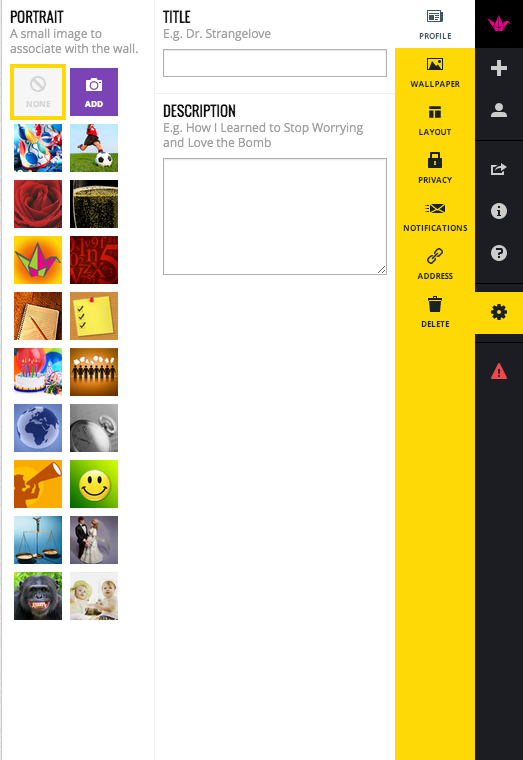
  • Pick a Profile Picture or Upload one
  • Pick your Wallpaper or Upload one
  • Choose your Layout - Freeform can be posted anywhere on the wall.  - Stream posts are posted nice and neatly in a stream.
  • Choose your Privacy Level
  • Modify the URL (Web Address)
Once you are ready to have your students or teachers post to your wall share your URL (web address) of your wall.

Padlet Tips:

  • The Paper Crane will take you to the "Home" page of Padlet.
  • The 4 Squares will take you to all of your Padlet Walls.
  • The + Sign will create a New Wall.
  • The Box with the arrow coming out is to share.
  • To make a post click on the Pencil at the bottom left corner of the wall.

Examples of my Padlet Walls:

  • Word Walls
  • Exit Tickets (assessment)
  • Brainstorming
  • Collaboration
  • Sharing Resources
  • Many More....


Reflection of FetC 2014 ....

Reflection of FetC 2014 ....

FetC is a national technology educational conference held in Orlando Florida.  I had the pleasure of attending and presenting at this very energetic tech ed conference.  I met some amazing people and learned a lot thanks to a good friend Brenda for letting tag along.

My funny take away from the conference was getting a new nickname.  When I walked around the conference and even at the airport afterwards people would come up and say Hi Edmodo Spin Girl.  I had worked the Edmodo booth throughout the conference. While working the booth I presented about how I created a Global Project using Edmodo.  This was the 1st time I did a "Theater Presentation" where people just came in had a seat and listened while I shared.  I was a little nervous wearing a mic and having people walking around while I presented, I wasn't used to that.  I did make some new best friends but only after attendees spun the prize wheel and then won an Edmodo T-Shirt.  I really enjoyed meeting new people and talking with teachers that love and use Edmodo.  I tried to answer as many questions as I could, if I didn't have the answer I was glad that the support staff for Edmodo was present to help out.

My favorite part of the conference was the TechShare.  It was energetic and very informational all at the same time.  I walked away with tons of new ideas and apps I wanted to use.  Thanks to Kathy I am going to have to get my daughter the Porkfolio, the smart piggy bank.  I am also going to have to find someone with a Kinect so I can do the Shapify.me.  I think it would be neat to have a 3D figure of me holding my iPad, Smartphone, and Laptop.  I also want to try and have my students create an encyclopedia via Wikipedia.  This would be a great resource of the content my students use when doing their research projects.  I also can't wait to try Flick, where you can flick or share your photos, documents, notes, and even contacts with any devices via the Flick app.  As soon as I get home I will be ordering the Nomad Brush, it acts like a paint brush for your iPad.

While I was waiting to enter the keynote presentation I was showing teachers some Augmented Reality.  It was fun showing and sharing what I have learned about Augmented Reality.  I smiled when someone would come up to me and ask to see my interactive calling card.  I had created this calling card to pass out and I had put a spin on it and added an Augmented Reality component.

When I get a chance I will be showing my staff the Quixy site.  It is a search engine just for apps.  TagBoard will be another tool I want to use not only with my staff but also with my students.  You can search across social media hashtags.

Some Take Away Resources: 


Katie Ann's FetC 2014 Overview by Slidely Slideshow
If the slideshow doesn't play Click Here.

Help Bring Google Glass to My School ....

Help Bring Google Glass to My School ....

I was presented with an invitation to join the Google Glass Explorer Program. This invitation presents an exciting and unique opportunity to share learning experiences, stories, as well as a students' and teachers' point of view!

I teach technology skills to middle school students as well as staff. Fulfilling this campaign will help bring Google Glass to our school that would other wise would not get the opportunity to learn and share this technology.

To Help Please Click Here


What We Need & What You Get

The cost of Glass is $1500 and is a little out of my reach. Any and all donations will go towards purchasing Glass.

In return for you support, you will receive a Thank You Tweet or email and a written Thank You letter from one of my students plus a Thank You letter from me. You will also be highlighted on my teacher blog - Diary of a Techie Chick as a supporter. You will then be added to the Making a Difference Section of my classroom eBook.

The Impact

Please help sponsor me in creating meaningful learning memories with Glass with my students! I would use them to capture student's stories, their thought process, and problem solving strategies. Glass would also allow my students the opportunity to share their story, and learning experiences with the world.

Bringing Glass into my classroom will do more than just put the technology in our hands, it gives my students an opportunity to explore technology that would otherwise be out of their reach.

Other Ways You Can Help

Some people just can’t contribute, but that doesn’t mean they can’t help:

  • Ask folks to get the word out and make some noise about your campaign.
  • Remind them to use the Indiegogo share tools!


And that’s all there is to it.


Apps I would like to Pair with Google Glass

A Day of Learning .... PD at Home

A Day of Learning .... PD at Home

Today was a great day to learn something new and boy did I ever.  I participated in 7 webinars from SimpleK12 over a variety of Mobile Learning topics.  While participating in the webinars I also followed via Twitter #EdcampLiberty.  Between both learning platforms I gain a lot of information about different topics in Educational Technology or Teched.

I think it is important that we continue our education no matter what our profession is.  I just happen to be in the field of education and love learning.  I suggest that you find a learning platform that works for you.


My favorite take away from the day:

"It isn't about the app or tool it is about the outcome!"


Apps I've Learned About:  


WebTools I've Learned About:


App / Tool of the Week .... Livebinders

App / Tool of the Week .... Livebinders

Think of Livebinders as a Digital Trapper-keeper.  I like to use Liverbinders as a Digital Portfolio for my students.  Student can create a Digital Binder and add their work.  This Digital Binder can follow them through their Educational Career.  Students are then able to then show their growth.

Things You Can Add to Your Binder:


  • PDF, Word, & Spreadsheet Files 
  • Websites
  • Images
  • Videos 
  • Basically anything you can make digital can be added.

Ways to Use Livebinders:

  • Organize Class Resources
  • Science Fair Projects
  • Class Projects
  • Research Projects
  • Showcase Student Work
  • An Assessment Tool

Example of a Digital Portfolio:


Twas Night Before the 1st Day of School ....

Twas Night Before the 1st Day of School ....

Twas the night before the 1st day of school a buzz was of excitement was in the air.  All of the children quickly ate their dinner and took their baths before heading to their rooms to take their evening nap.  The oldest of the Wilson kids had already completed his summer homework assignment and was eager to turn it in.  His dreams all summer long were filled with the Lords of the Flies and vocabulary words he wasn't sure if he would ever use again. The middle Wilson child, who had plenty of 1st days of school, had planned on sleeping in his new outfit so he could have an extra 30 minutes sleep when morning comes.

The youngest of the 3 Wilson children was the most excited of them all, it just happened to be her second time for her 1st day of school.  Her smile and joy silently fell when she was told that tomorrow wasn't going to be her 1st day of school after all.  That she had to wait a whole 5 days before she would have her 1st day of school.  She slowly started to smile again as she thought about her 1st day of school.  She jumped up and down and repeated over and over that she would have her special 1st day of school.  She was still excited and continued to pick out her outfit.  With a smile on her face she informed us that tomorrow was going to be a practice 1st day of school.  She became even more excited and decided that she would have 4 practice days and on her real 1st day of school it would be perfect.

With the excitement slowly dying down.  The kids quickly snuggled deeply in their beds with dreams of new pencils, pens, and paper all dancing in their heads.  When morning shall arise there will be two boys begging to sleep until mid morning.  Whining and pouting will follow with over stuffed backpacks slung over their shoulders as they head for the car.  One excited little girl will sing as she dresses, enjoy her breakfast, and explain how the 1st day of school shall go.  A quick 1st day of school photo will happen with complaining and reminding that there will only be 2 more 1st day of school photos.  I sweetly smile as there will still be collage.

App / Tool of the Week - Evernote

App / Tool of the Week - Evernote ....


The tool other than the Google Apps I use the most is Evernote.  Evernote is a tool that is web based and can be accessed with a computer, tablet, or smartphone.  The reason I love using this tool is I can access my stuff on any device.

I love that I can have Notebooks.  I think of the Notebooks like a filing cabinet drawer.  I can break down a notebook even more by adding more notebooks to the 1st one.  For example I have a notebook labeled Summer PD.  In that notebook I have created a notebook for each conference I have attended.  Within each conference notebook I have a note for each session, I have also tagged each session.  Say I attended a session on creating student blogs one of the tags I would assign it is blog.  This way I can do a search for blogs and everything I have tagged blog will show up in the search not matter what notebook I have assigned it to.


Evernote also has a Web Clipper.  You can capture parts of a website and import them onto a note within Evernote.  You can also add audio, images, websites, and other resources to your notes.

Here are some ideas you can use Evernote for:

  • Note taking
  • Recipes
  • Collaboration Tool
  • Saving Websites
  • Sharing Resources
  • Trip Planning
  • Shopping Lists
  • Reminders a.k.a Sticky Notes
  • Store Documents
  • Record Audio
  • Capture and share images
  • Manage a Paperless office or classroom
  • Projects

Evernote has some really good video clips in YouTube.  They also have some other great tools that work with Evernote that I am still learning about.

The Global Digital Scrapbook ...

The Global Digital Scrapbook ...

The launch of The Global Digital Scrapbook has been a success.  I bet you are wondering how I can even say this project is already successful when the school year hasn't even started for me.  My goal for this project was to connect my 6th grade students with other students so that they can learn how to build positive connections.  I wasn't sure how it would all work out, but I had to try.  I spent several days brainstorming how to organize and run such a project.  I tried to think up every question that might be asked of me and find a solution.  I created the group in Edmodo and tried to organize the folders within the group.  I wanted to be able to provide as much information and resources to teachers and students who decided to participate in this global project.

My new goal for this project is now to connect teachers and students from around the world and help them share their stories, cultures, and traditions.  You can help by sharing this project and encouraging others to participate.  You to can also join in and participate with this global project.  We currently have 18 schools and over 800 students involved in this project.  I am excited to connect and collaborate with teachers and students from all over.  I can't wait to watch the scrapbook pages start to take shape.

For more information about the project or to watch it grow please visit:


Leadership Day 2013....

Leadership Day 2013....

A leader in any profession is someone who sees the path, walks on the path, and guide others through the path.  In education it is no different.  You don't have to be the techie type of person to lead others in the field of Edtech.  No one is going to expect you to code, program, and build hardware.  The skill you need the most is the skill to adapt. Technology is constantly changing, it is becoming smaller and more mobile and you need to be able to adapt.  You also do not need the newest coolest tech toy out their to function, but if you are reading your emails on a machine that built in 1990 it is time to upgrade.

Leaders in Edtech are people that do great things with the tools they have and advocates to bring in more, to do more, and to include technology as much as possible.  They inspire others as they go through their journey.  They don't just stop with inspiration they go out of their way to help others as much as possible.  They may not know the answer to every tech question but they are not afraid to say "Well lets figure it out together".  They are also not afraid of exploring and sharing what they have discovered.

I think Peter Drucker said it best "Effective leadership is not about making speeches or being liked; leadership is defined by results not attributes."


My Global Project for 2013-14....

My Global Project for 2013-14....
There has been a change to the URL!!

After attending a "Follow Me" presentation at Podstock '13, a presentation for a "Global Read Aloud", and hearing the words from yet another presenter "Lets do something Great together", have inspired me to create a "Global Project".  I want to connect my students with other students from around the world. I want to knock down the walls of our school and let my students experience cultures from around the world.

Last year my Social Studies students sent out a plea for postcards. We did end up receiving several postcards from around the world, but most of them came from friends and family of my students.

I thought to myself what can this small Kansas town teacher do as a global project? Then it hit me, a Global Digital Scrapbook. My mind has gone crazy thinking how can I organize this project? I've decided to use Edmodo as the platform to collaborate and Weebly as the house to hold our Global Digital Scrapbook.

Now I need your help.  I need you to spread the word about our "Global Digital Scrapbook".  I would like to have as many people as possible involved in this project, the more the merrier.  I would love to see it grow.  I know with your help this project will be amazing and powerful.

To participate in this project please visit the home page of our "Global Digital Scrapbook" for 2013-14 and fill our the Sign Up form.

The NEW URL = http://gdsp2013.weebly.com

It All Starts with a Spark...

It All Starts with a Spark...

I've been asked several times; "What's your story?".  I am going to try to write little tidbits here and there about myself in order to share my story, to share my passion.  I will try not to bore you with every little detail about my life.

As long as I can remember I loved going to school.  I love being around my friends and learning new things.  When I was in the 3rd grade my school received its first desktop computer, an Apple II and it was placed in the library.  If you wanted to use this machine you had to enter in commands, which no one knew how to do.  During school I would spend hours in the library playing around on it.  It fascinated me, it puzzled me, and it intrigued me.  The librarian challenged me to create a searchable database for the books in the library, like a card catalog.  By the time I moved away I had entered over half of the items into the database I created which was all saved on those big "Floppy Disks".  It took me a while but I figured out about the "What IF" statements.  After I figured that out my database was searchable.  I had created an digital card catalog.  You have to keep in mind I was a third grader put in front of this machine and told let see what you can do with it.  No one showed me how it worked, what it could do, or how to get data into it.  I just played around until I made things happened.  I did move away after I had finished the 5th grade so my learning didn't happen over night, nor did I give up.  This challenge sparked a passion in me to learn more about this machine.

My passion grew in middle school.  I learned about coding and was able to make basic graphics.  I was also able to make a little game, and it worked.  I started hanging out with guys that shared my passion.  I asked them a lot of questions.  I wanted to know what they knew so I could apply it and grow even more.  I went in search of new knowledge and wanted to learn from others.  During this time another passion was sparked.  It started with a cheap point and shoot camera.  I became hooked and wanted to learn photography too on top of computers.

Throughout high school I kept learning more and more about computers and computer programs.  I not only watched the evolution of computer technology, I lived it.  The birth of computer programs was happening and was shared with schools.  I look back now and I was lucky that my school embraced this tool and exposed us to it.  My teachers would ask me to figure out how these new programs worked.  They would hand me those very thick instruction manuals expecting me to read them, I would just hand them right back.  I couldn't read how they worked, I had to explore and experience it.  It didn't take me long and I could figure out every program that they set in front of me.  Not only could I figure out the program I was able to teach others how it worked.

To be continued .....


My Recap of Edmodocon 2013.....

My Recap of Edmodocon 2013.....


I bet you are asking yourself what is Edmodocon.  EdmodoCon is an entire day of short professional development sessions on a variety of topics on using technology in the classroom and is sponsored by Edmodo broadcasted in a webcast.  I was just one of the 25,000 educators from 170 countries enrolled for this one of a kind conference.  There were several viewing parties, where educators got together and participated virtually as group during the conference.  I myself was a party of one.

During the conference I learned a lot about Edmodo itself.  In the past I used Edmodo here and there with a small group of students.  Listening to how others have used this powerful online tool inspired me to totally embrace all of what Edmodo can do.  I didn't realize how powerful the groups can be within Edmodo.  During the conference I kept hearing how kids love to earn badges.  During one of the breaks I created Ancient Egypt, Ancient Rome, and keyboarding badges.  I plan on creating more and defining how to earn them later this week.

In the past I knew about the folders but I wasn't very organize when I uploaded my stuff to the library.  During another little break I was able to organize the items I already had thanks to a teacher I was in a chat with and started adding new items that were shared in the community.  I didn't have to upload items if someone else already shared it what a concept.

I am wanting to do Flipped Instruction with my students so the Edmodo platform just became the right choice for me.  I love the idea that I can connect with classrooms from around the world.  Having everything in one place, assignments, quizzes, videos, and etc... will just make my life a whole lot easier.

I am also taking "The Challenge" to apply at least one thing I have learned from Edmodocon.  I looked at the list of all that have signed up for "The Challenge" and I was 23rd on the list.  For the first 500 people who participate in the whole process by completing "Th Challenge" form and completing the form they will share October 1st, will win $100 in promotional Edmodo Store Credit to install and integrate apps in your groups.  I am kind of motivated and would love to have the GoAnimate app for all of my students.

I use Google Docs in my classroom I had no idea that I could incorporate my already created Google Forms/Docs/Spreadsheets and etc... within Edmodo.  This discover with the help of yet another teacher I was chatting with during the conference made my heart sing.  You can also embed items.  So if you have embed codes they should work wonderful within Edmodo.  There was so much information shared I have picked a handful of my favorites to share with you.

My Global Project thanks to Edmodocon 

Resources:

Tips:

  • Make folders in your "Library".  Keep organized!
  • Join groups/communities that fit your needs.
  • Lock down your groups.
  • Use the widget to help turn items on and off with in your groups.
  • Use the Filter to help filter posts.
  • Modify your notifications to fit your needs.
  • Make connections within Edmodo.

Intro to Layar and Augmented Reality ....

Intro to Layar and Augmented Reality ....

The Layar Creator is a web based application when partnered up with the Layar app for your Smartphone or Tablet will create Augmented Reality.

Steps to get started:

  • Go to Layar.com and create an account.
  • Verify your e-mail account.
  • Log into your Layar account and go to the Creator.
  • Have your image ready to upload to the Creator.  If it is a drawing scan it and save it as a digital image.
  • Click the button "New Campaign". 
  • Name your Campaign.
  • Click "Create Campaign".
  • Click "Add Page".
  • Upload your digital image.  This becomes your Trigger Image.
  • Once your image is ready start layering your content on top of your image.
  • You can add a slide show, video, audio, websites, and etc....
  • After you have placed your components on your image return back to your list of campaigns.
  • When you are ready click "Publish".  Once it is published your image becomes live.
  • Print your image and test it out with the Layar app.

Below is a video tutorial I made to demonstrate how to create Augmented Reality using the Layar Creator.


If you would like to test this out, download the Layar app and print out this picture or scan it off of your screen.


Tips:

  • Have a sign or the Layar Symbol next to your Trigger Images so people will know what app to use to scan it.
  • Start off simple.
  • Test your image.


My Recap of Podstock 2013....

My Recap of Podstock 2013....

Every time I attend a conference on educations plus technology I get inspired and energized.  I love meeting and connecting with new people that have the same interest and passion as me.

This year I did a poster session for Podstock on how I did Flipped Instruction within my classroom.  As I was thinking how I was going to accomplish this and make my mini session with people rememberable.  I decided to "Flip" my presentation.  I made my presentation interactive with the use of Augmented Reality and kind of let it speak for itself.  On my board were trigger images.  You scanned the different images with the app Layar and either a student created work appeared or a tool and or resource would appear.  One of the resources was a little video I created in front of my Green-Screen on the different tools I used in my classroom.  I also turned around and made my little handout interactive as well.  I explained that just like my board you could scan the images and magically the resources would appear for them including the video I created explaining the tools and the resources I used.

I love to share what I have learned so below are links to the notes I took while at Podstock.

When I learned that there was going to be a Photo Walk my heart sang with joy.  Below is the link to my Podstock 2013 Photo Walk.  I really enjoyed sharing that passion with others and can't wait how they saw and captured our little walk.
I also love to create something to help me remember my time at conferences.  Sometimes it will be a scrapbook page or two, a collage, or even a slide show.  So this year I took my iPhone and captured a few moments while at Podstock and mashed it all up to create this little video.  I had a hard time picking my favorites.
Thanks for the great connections and I hope you keep in touch.  


Seeing A Different Kind of Reality...

Seeing A Different Kind of Reality...

Google Glass has made a wave of excitement by introducing Augmented Reality.  I was introduced to Augmented Reality during the MACE conference's by the keynote speaker.  I found it very intriguing and just had to learn how to create this different kind of reality.  I did a little research and found a company LAYAR that offeres a augmented reality reader and creator that was free.  Being a teacher free is the best price for my classroom.  

You can use any type of image, artwork, picture, and etc... as the TRIGER image for your Augmented Reality the only catch is that it will need to be digital.  Which means if it is a drawing or artwork of some kind you will need to take a picture of it or scan it.  I first tired it out with 2 digital pictures of myself and overlaid a link to my classroom website, Tweeter feed, a slideshow, and a YouTube video.  I used the LAYAR creator to make my Augmented Reality.  After I had published my new campaign I was able to use the LAYAR APP to view my new reality. 


Changing Presentations:

After I taught myself how to use the LAYAR creator I had my students create a presentation to overlay on top of a picture I already had them.  My goal was to have it look like they were holding their presentation. 


Example:

Original Picture
When scanned with the
LAYAR App she holds an
 interactive presentation.


Tip:

  • Make your trigger object is digital. (Take a picture of it or scan it.)
  • You have to verify your email account before you publish and make your Augmented Reality live.
  • Test your campaign before others try to scan your trigger image, just to make sure it is all working.